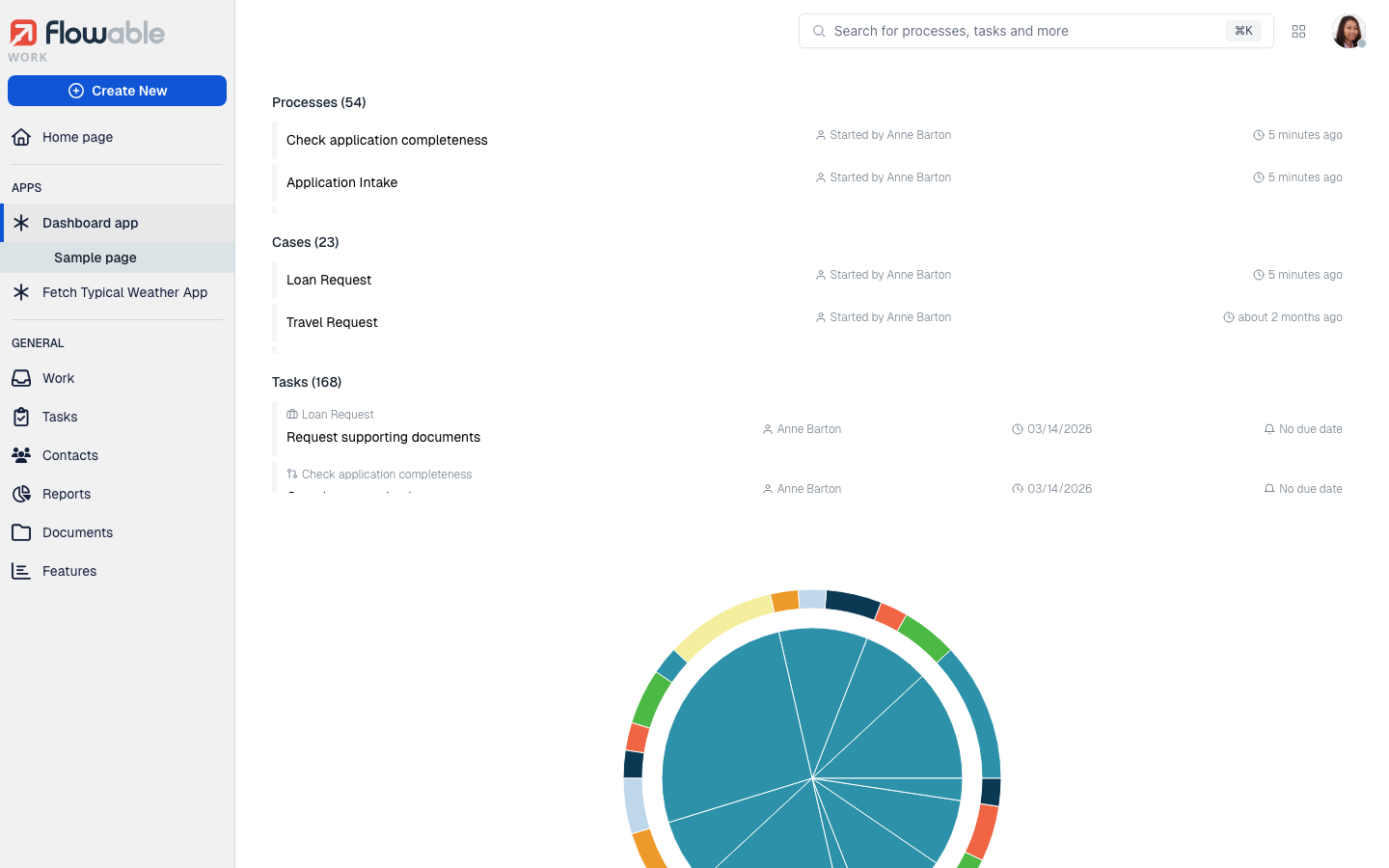
Work
The Work button lets you access the list of created work items.
When you click on Work the inbox loads the list of work items that are for me,
and it expands the list of other available filters for work items. The button
for creating a new work item is also shown.
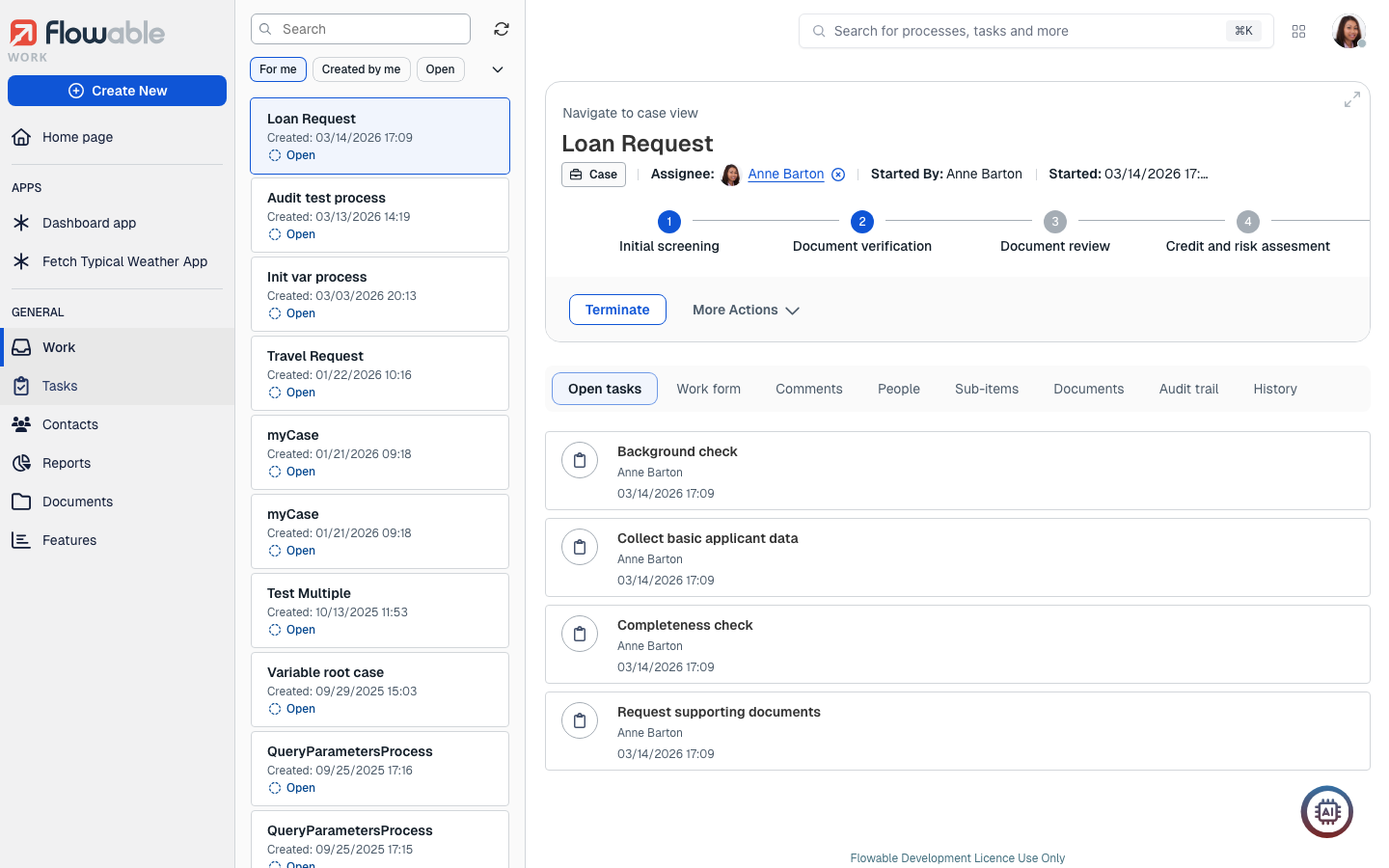
Work Inbox
The Work Inbox shows you work items based on the filter you have selected in the expanded list. For example, if the For me filter is selected in the submenu, you only see work items where you are involved.
 note
noteThe work items are ordered by Creation date descending, thus showing the most recent items first.
Creating New Work
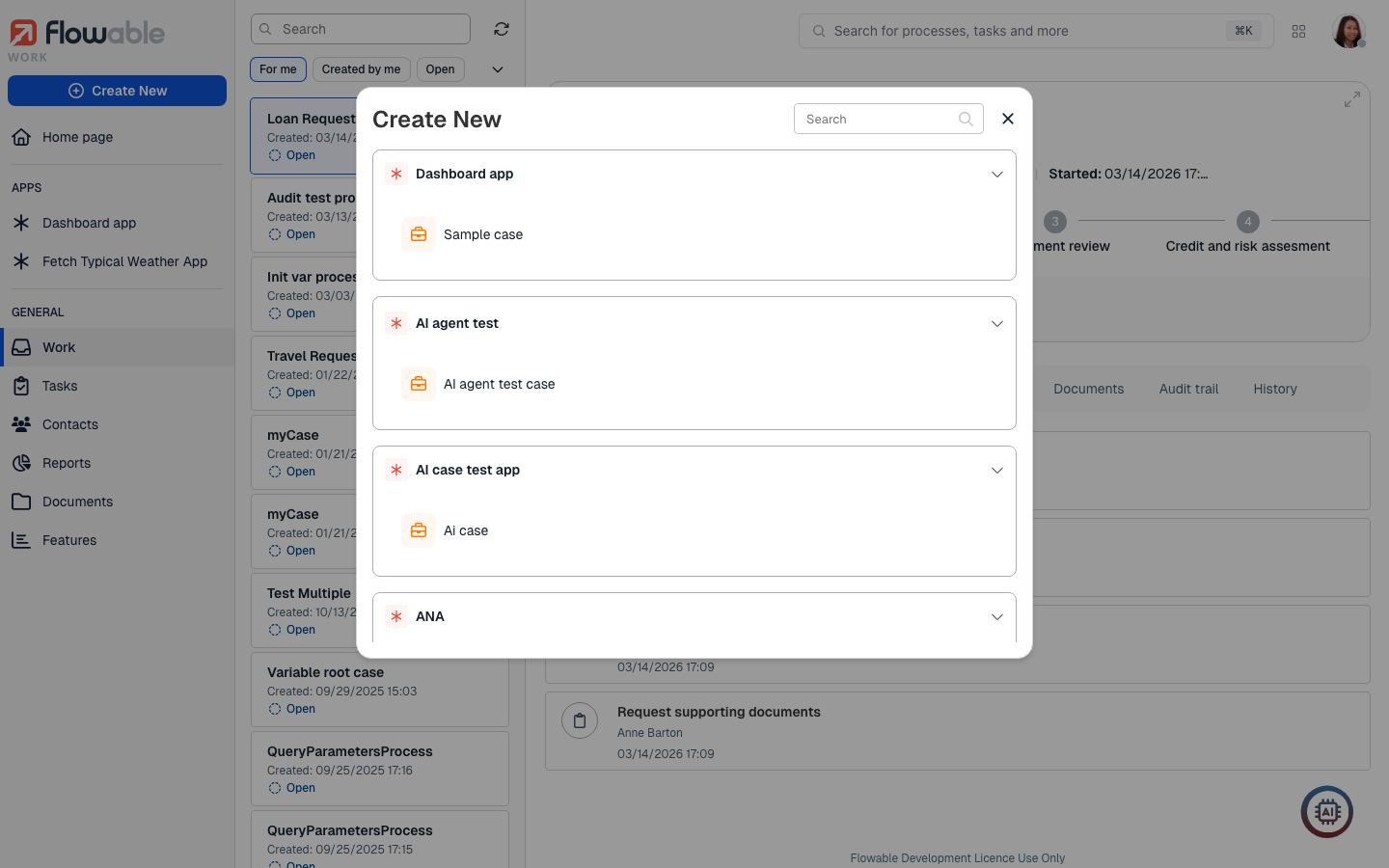
Similar to the New button, when you click on Create new, a window appears to select which case or process you want to start. The list is scrollable using your mouse wheel and contains a search box to search by name.
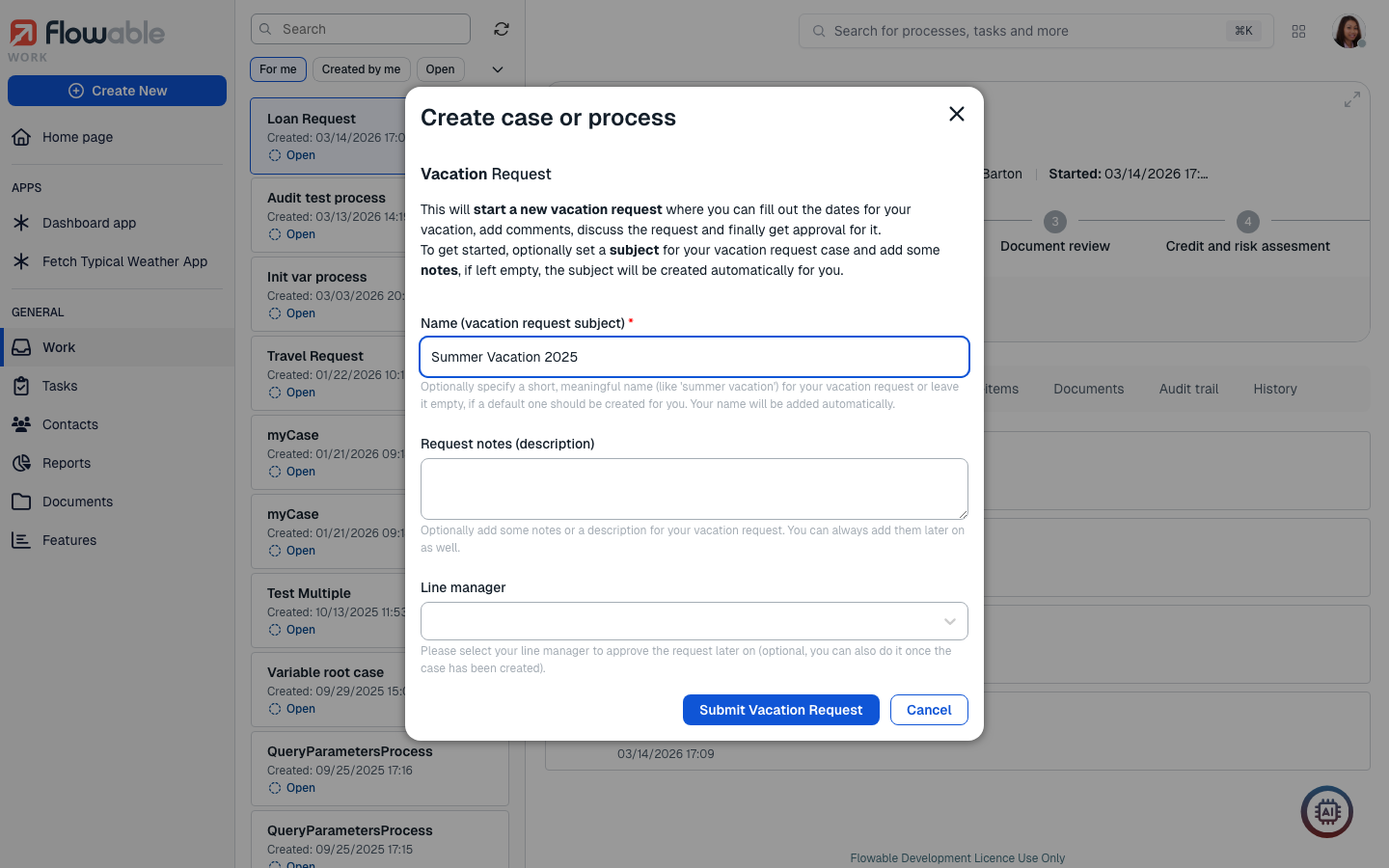
After selecting which work item you want to create, if there is an init form associated to the work item, it would open as a new modal window showing the form so that you can enter the initial values for it, for example:
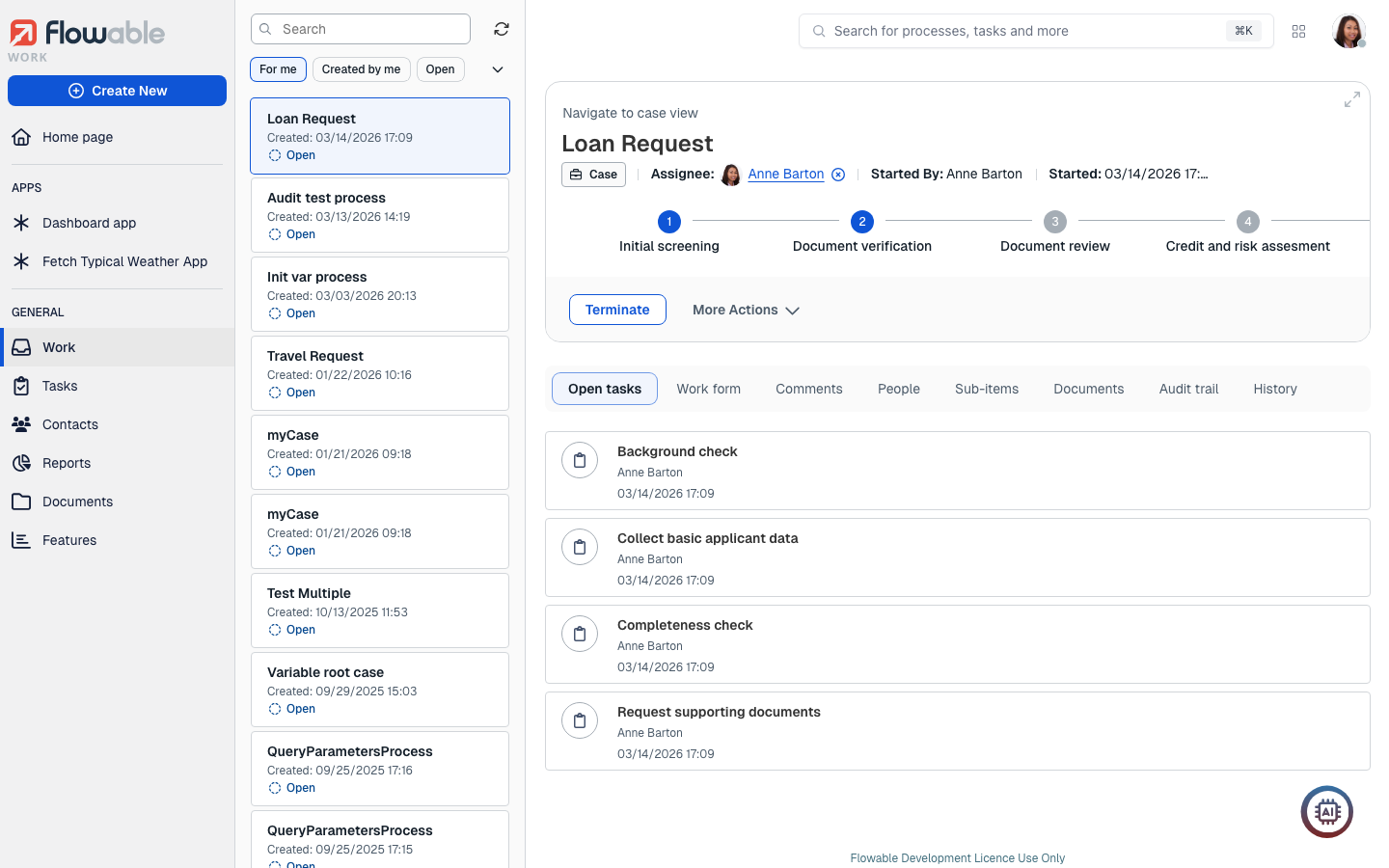
After filling the init form (if there is one), the navigation would take you to the corresponding section of the side panel according to the item you have created, it is selected in the inbox panel, and it is shown in the details panel.
Work Details
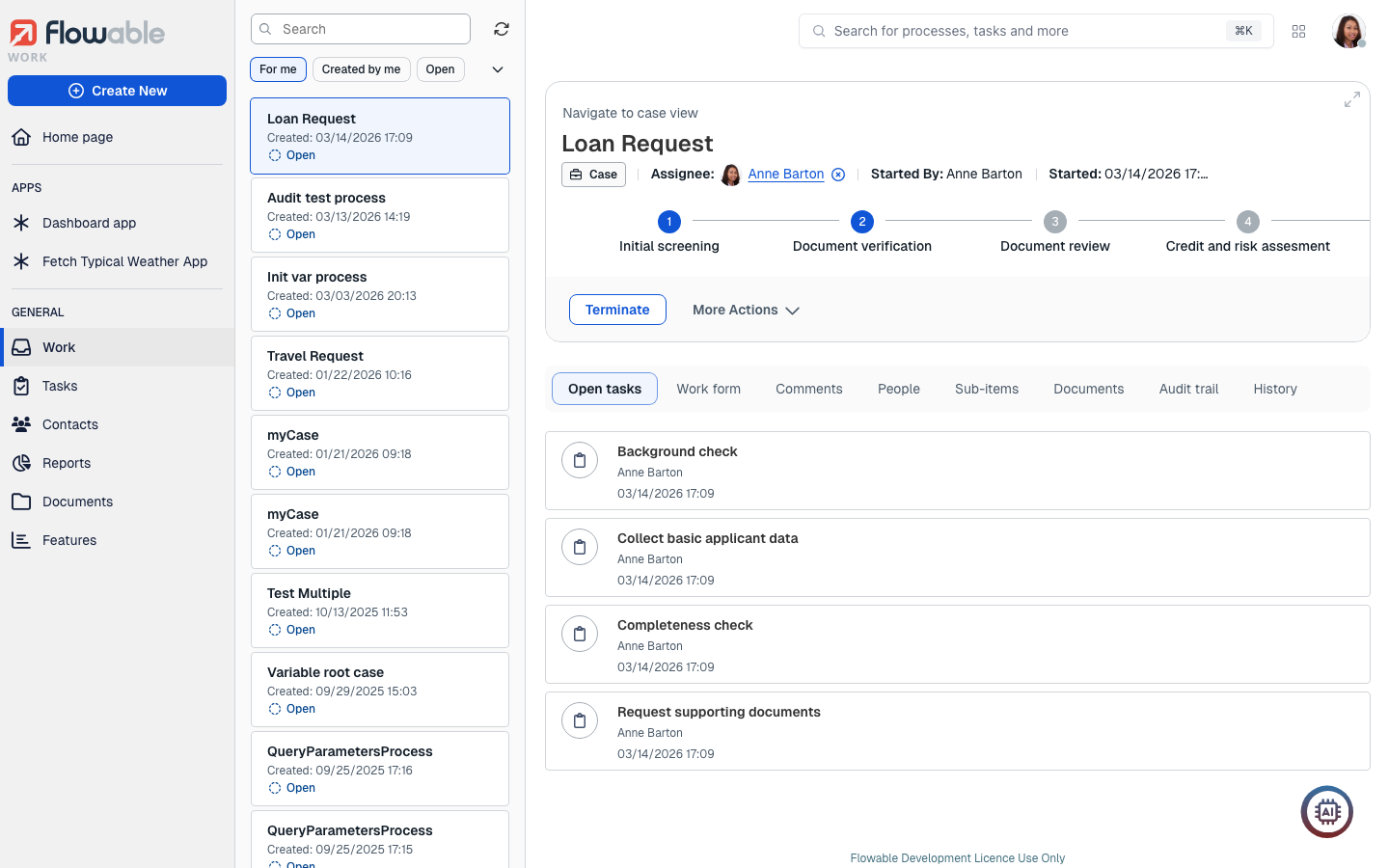
The details panel of a selected work item contains all the information about the item, a navigation bar to see more details, a button for additional actions, and a main area to interact with the selected work item.
The Work Details panel differs from a case to a process slightly:
Case
Process
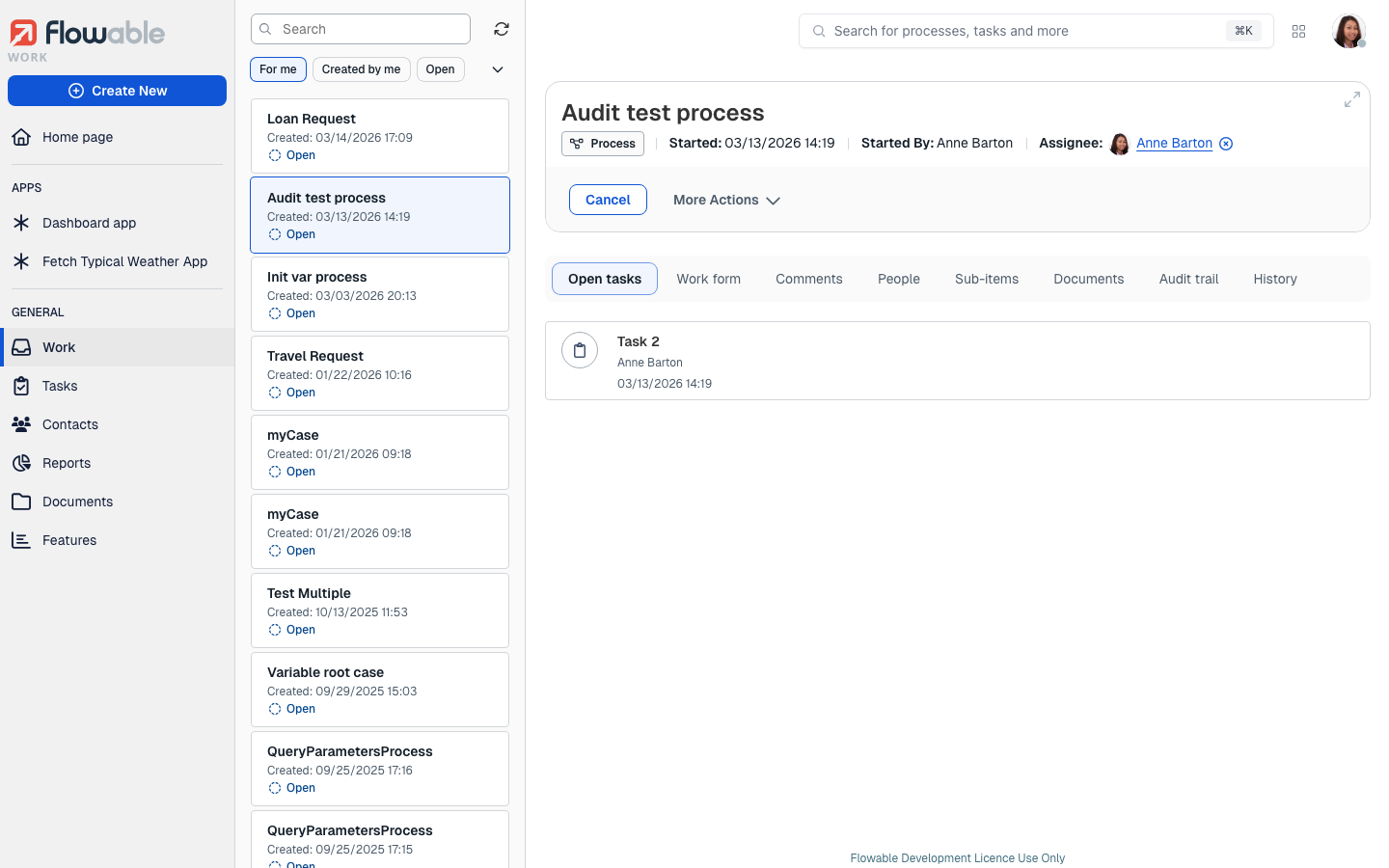
Header
The header contains the name of the work item when it was started and by whom, and a button to perform additional actions.
If the work item is a case, it might show the action buttons that have been modeled for it as well as its stages, which are shown in the form of a multistep diagram, showing completed and pending stages.
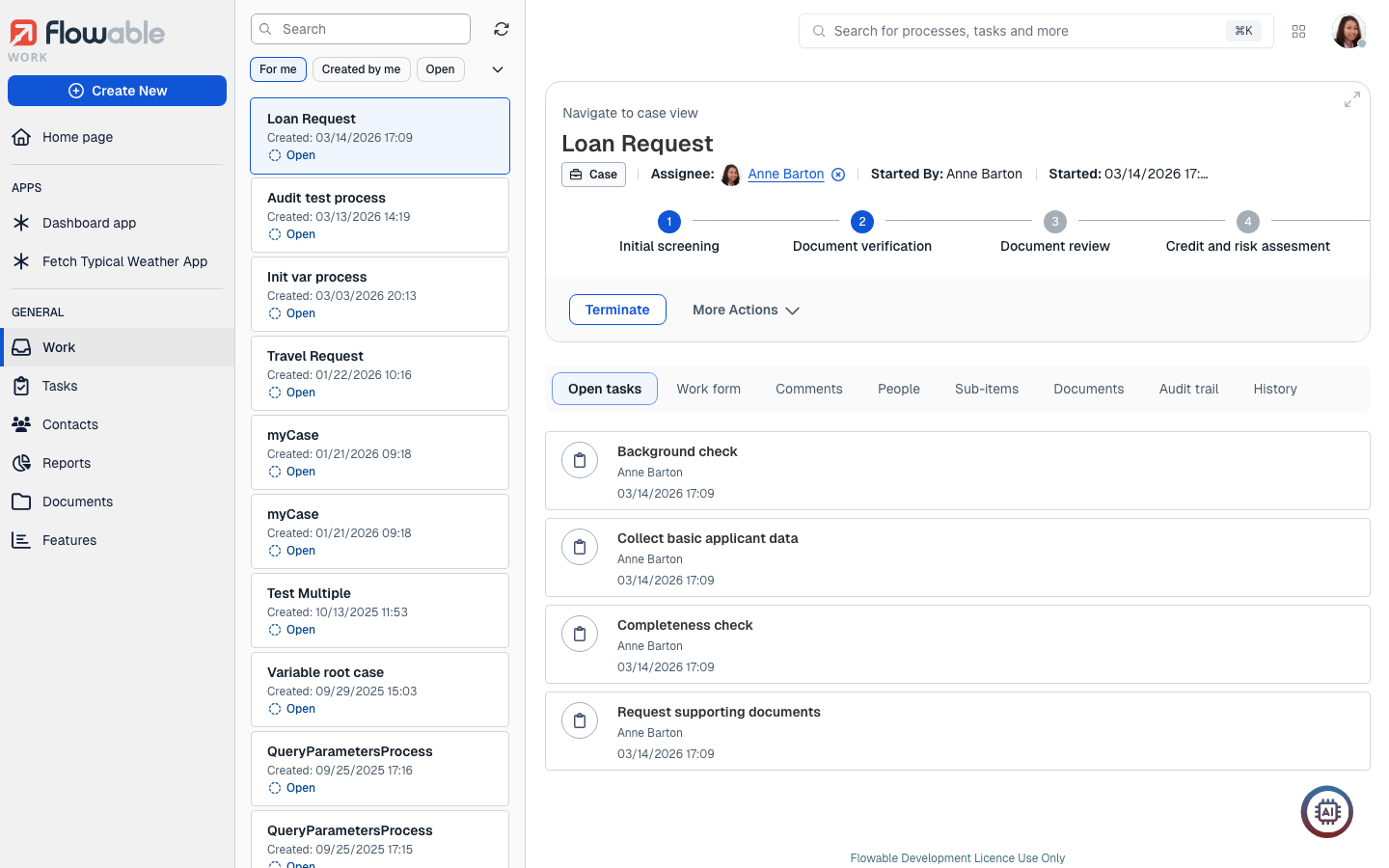
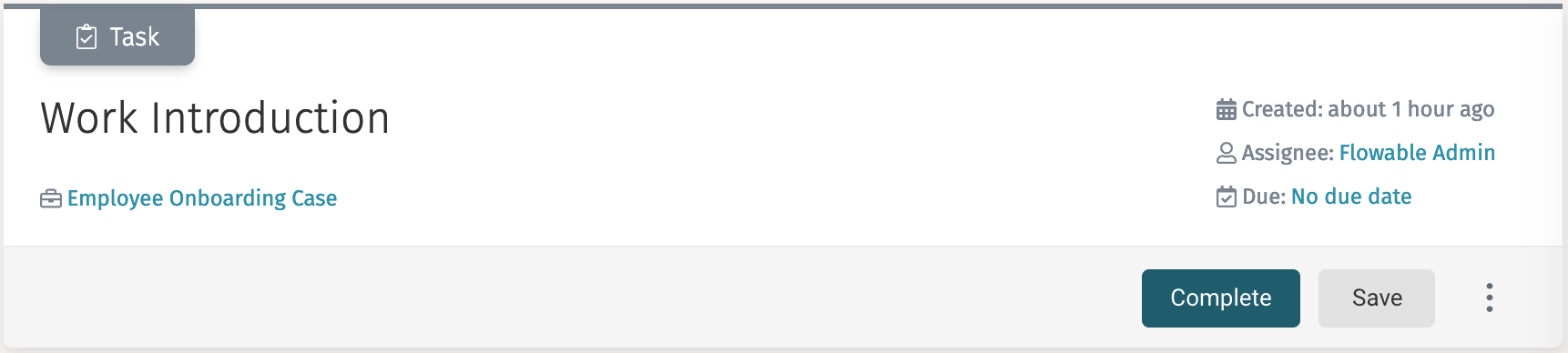
If the work item is a descendant of another work item (for example, a process that is created inside a case), a navigation link to the parent work item is shown and clicking on it loads the details of that work item, similar to the one that appears when selecting a task inside a case.
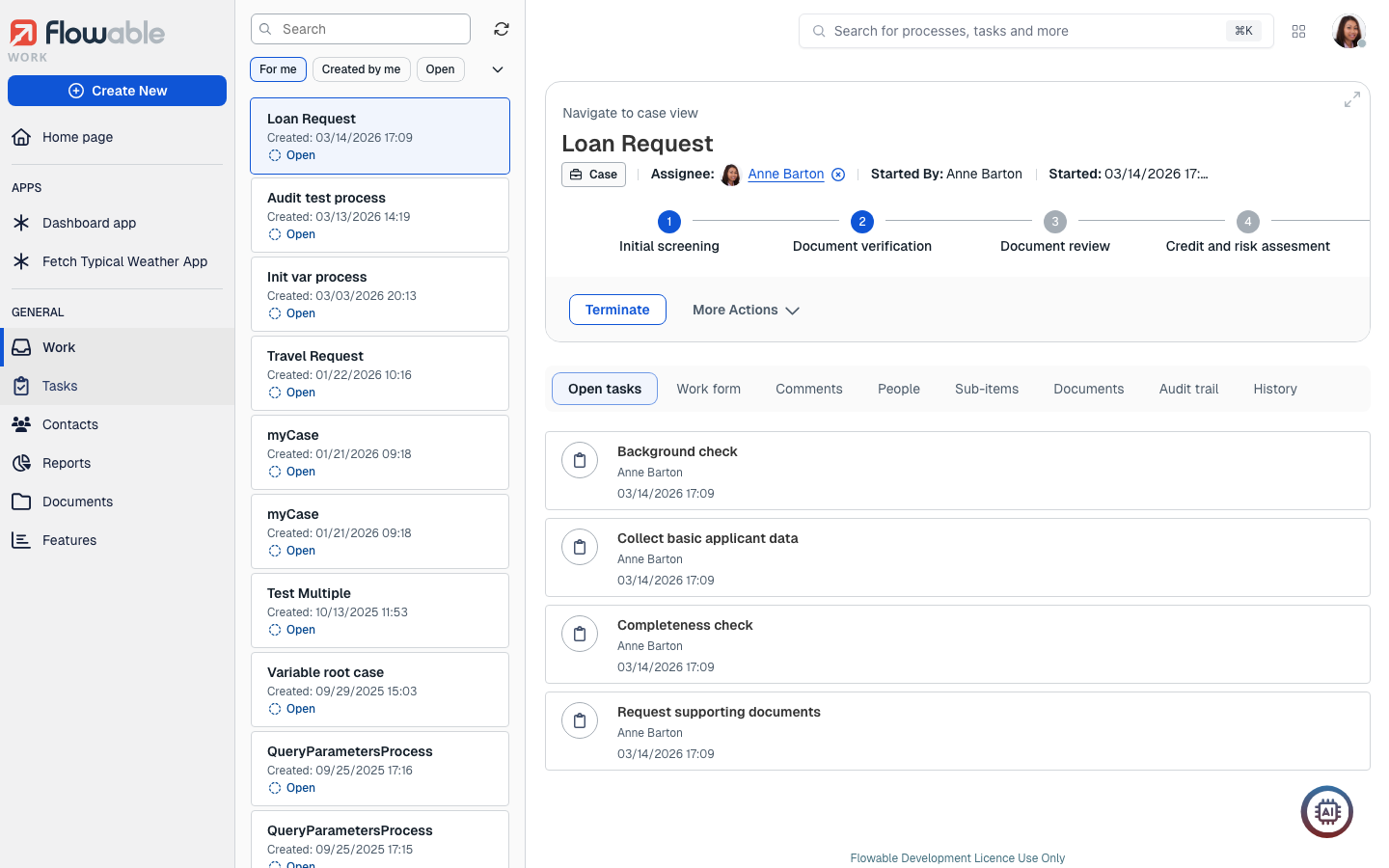
Open Tasks
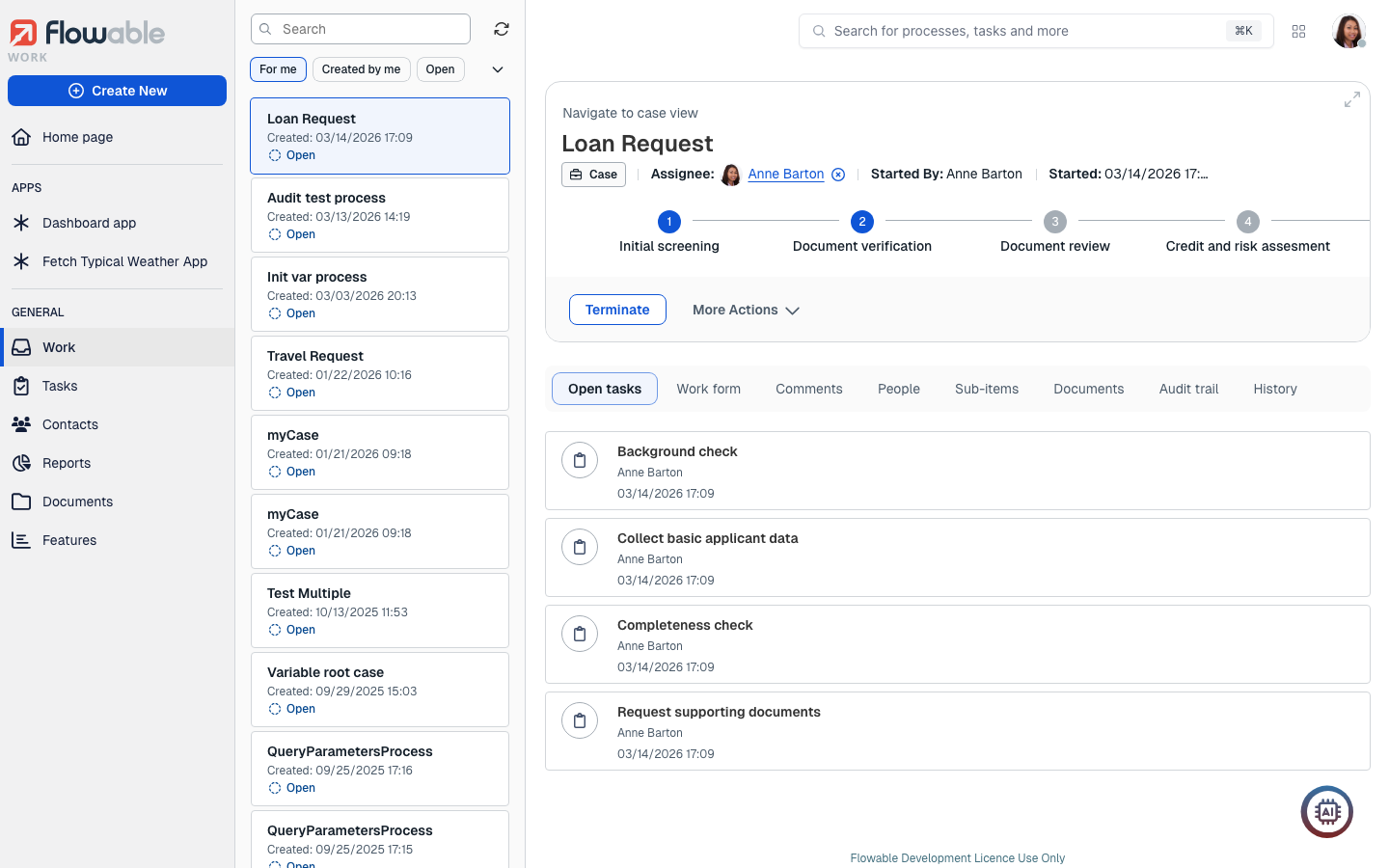
In the Open Tasks tab the list of visible open tasks from the work item is displayed in list form. You can then click on a task, and the task details view is shown. Refer to Task Details for more information about this view.
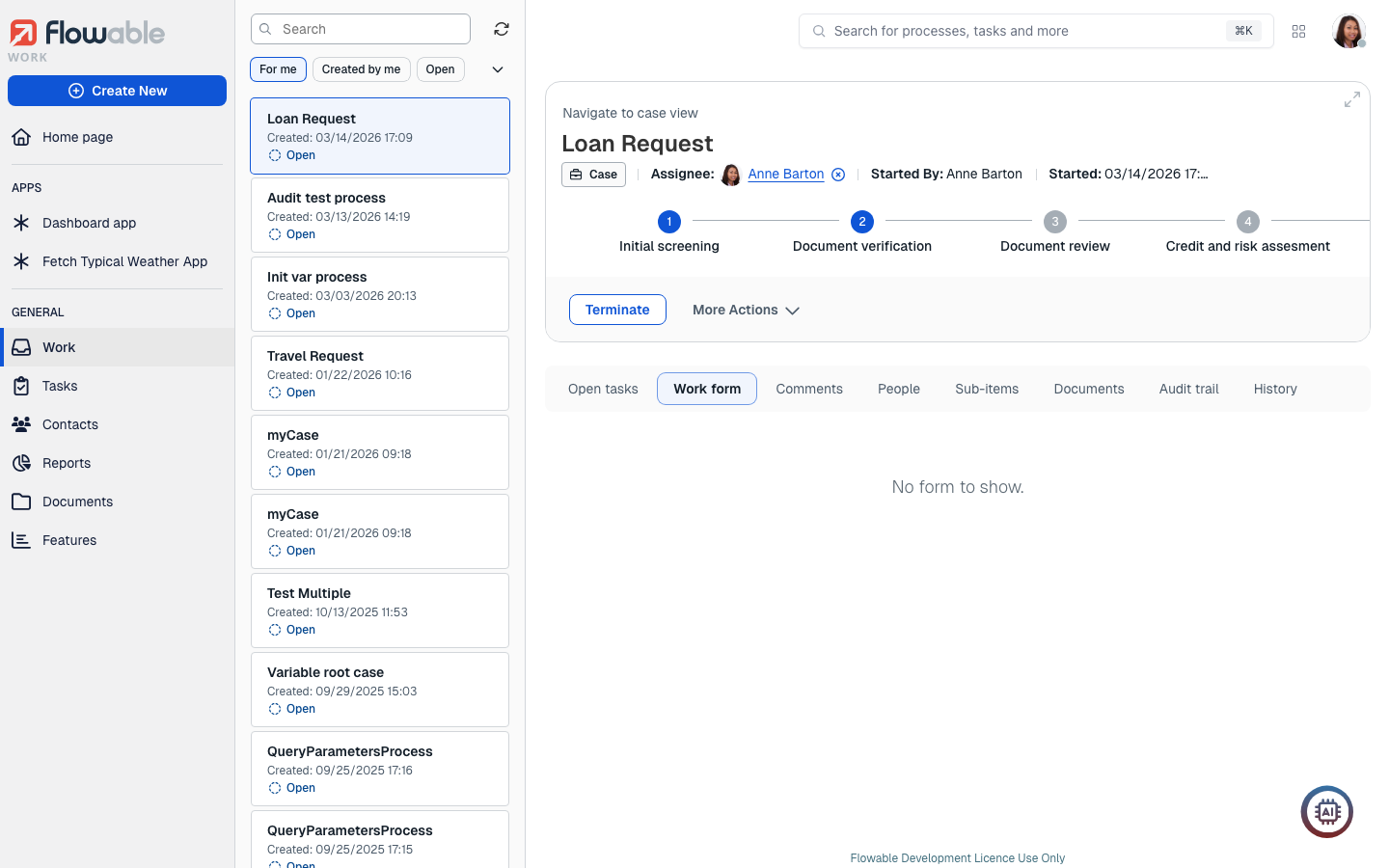
Work Form
A work item can have a work form, that is designed in the Flowable Modeler. When selecting this option, the work form is displayed.
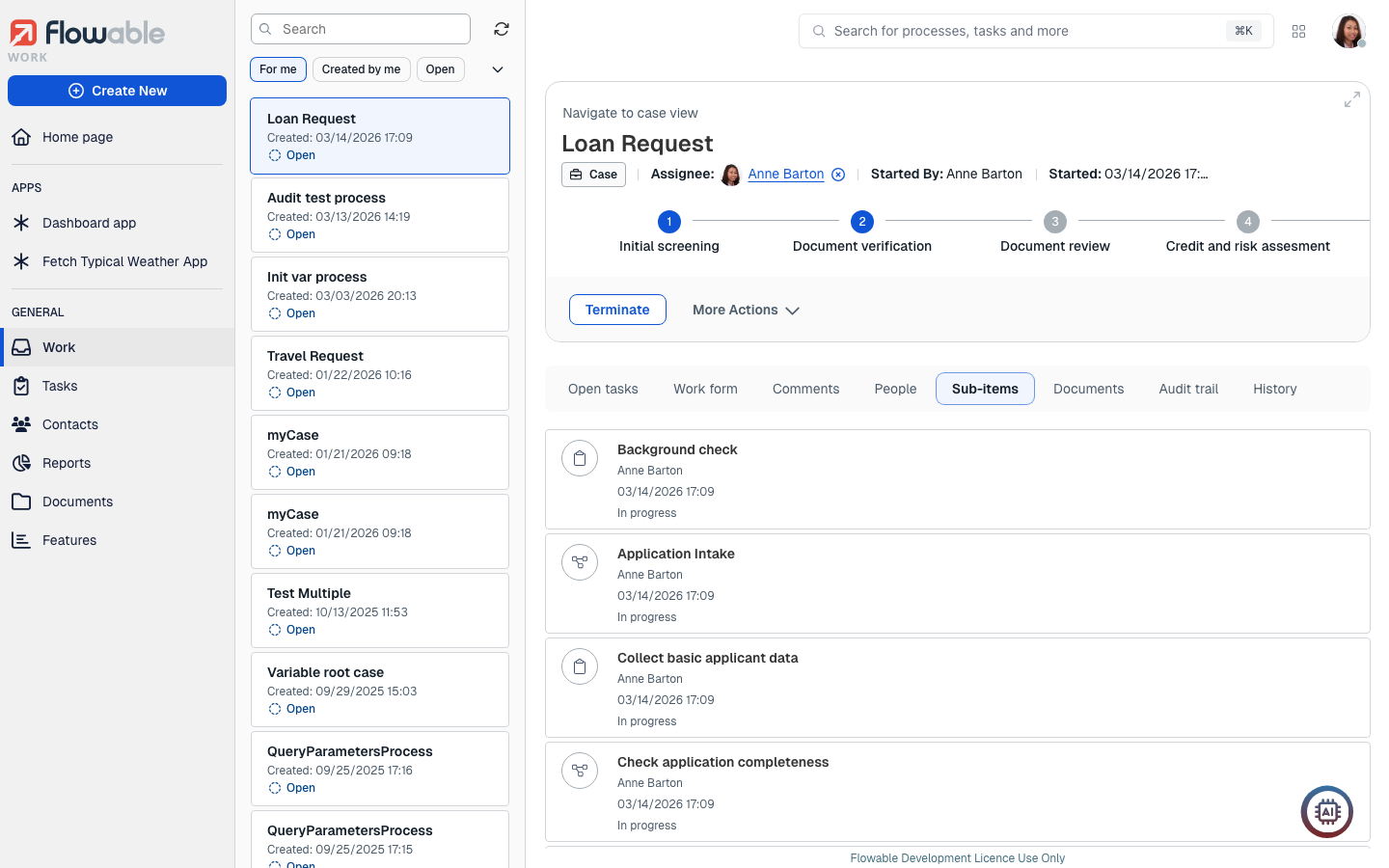
Sub-items
In this tab, you can view the hierarchy of work items and tasks that are descendants of the selected work item. For example, you can view the tasks that are part of your process. This list is scrollable.
Documents
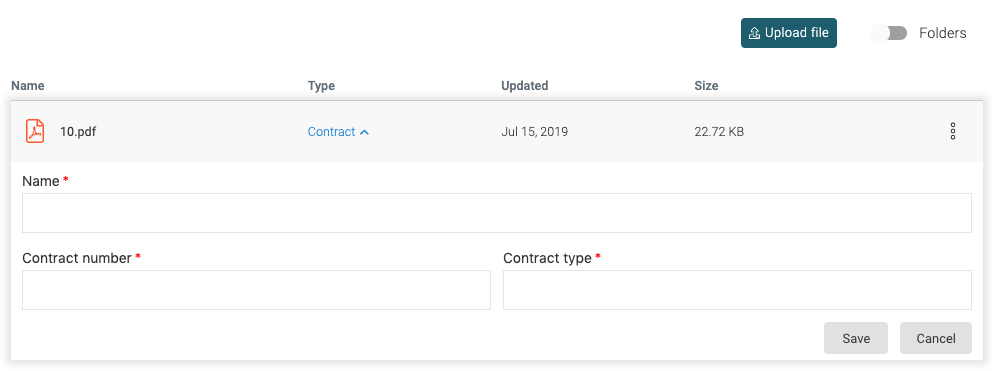
In the documents tab, you can attach files to the work item, view already attached files and delete attached files.
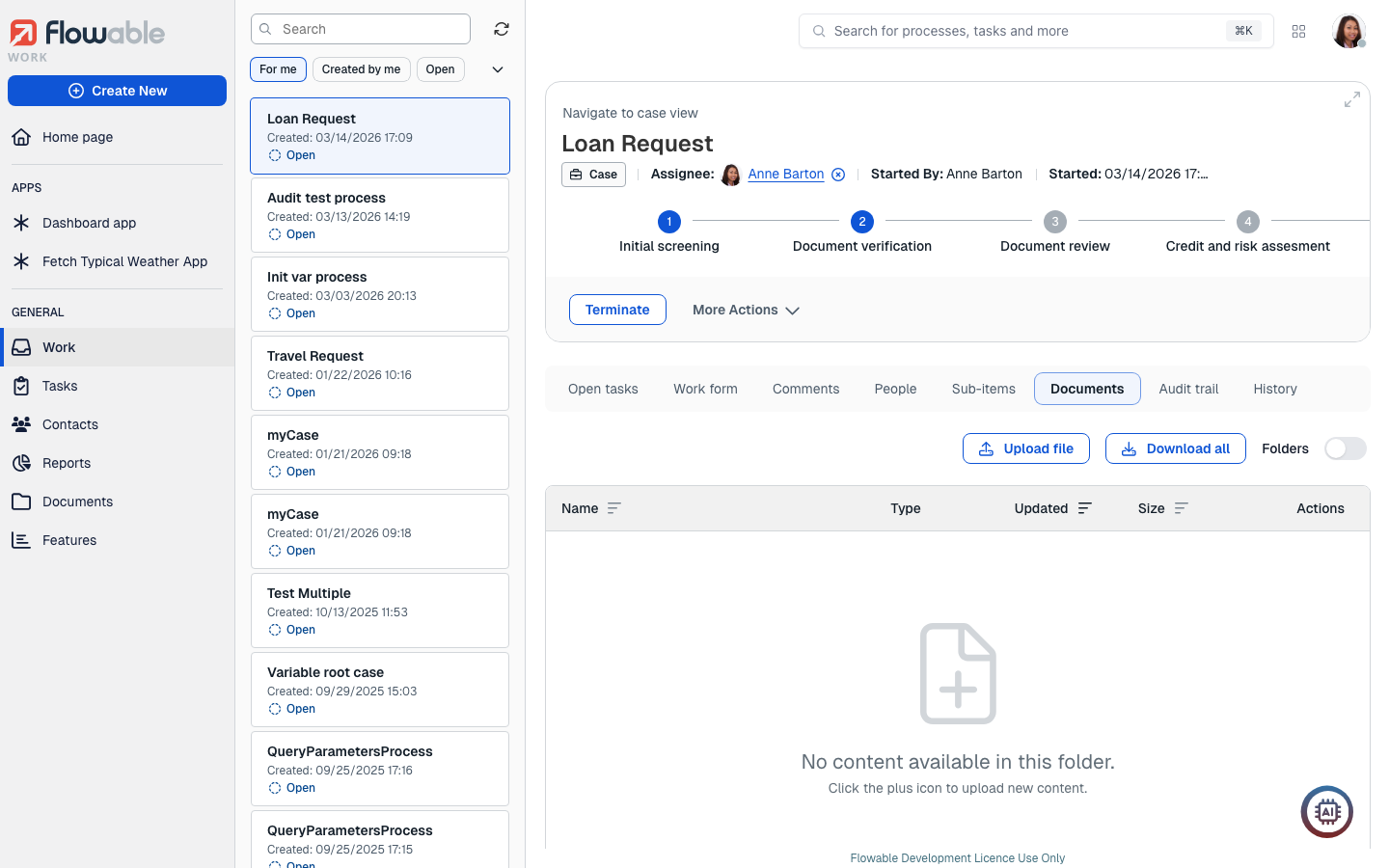
To attach a new file, you can drag and drop new files into the dotted box or click on the link, and a window for choosing the file from your system is opened.
v3.16.0+Click on Download all to retrieve all files in that current folder (and its subfolders) in a zip file.
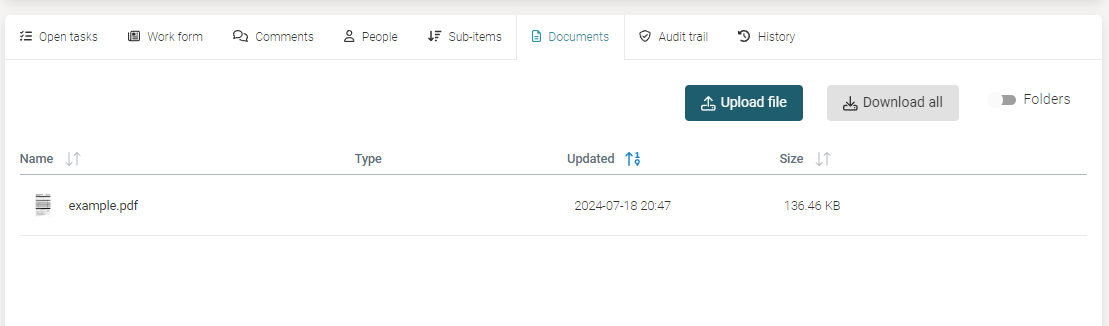
To delete a document, click on the button represented by the three dots and select Delete file.
You can add metadata to a document by the same button and select Add content type.
This selection opens a
panel below where you can enter the content type (for example Contract) and based on
the selected content, additional fields appear. To save your metadata,
you have to press the Save button in the header area.
History
The history tab contains several subtabs:
Diagram
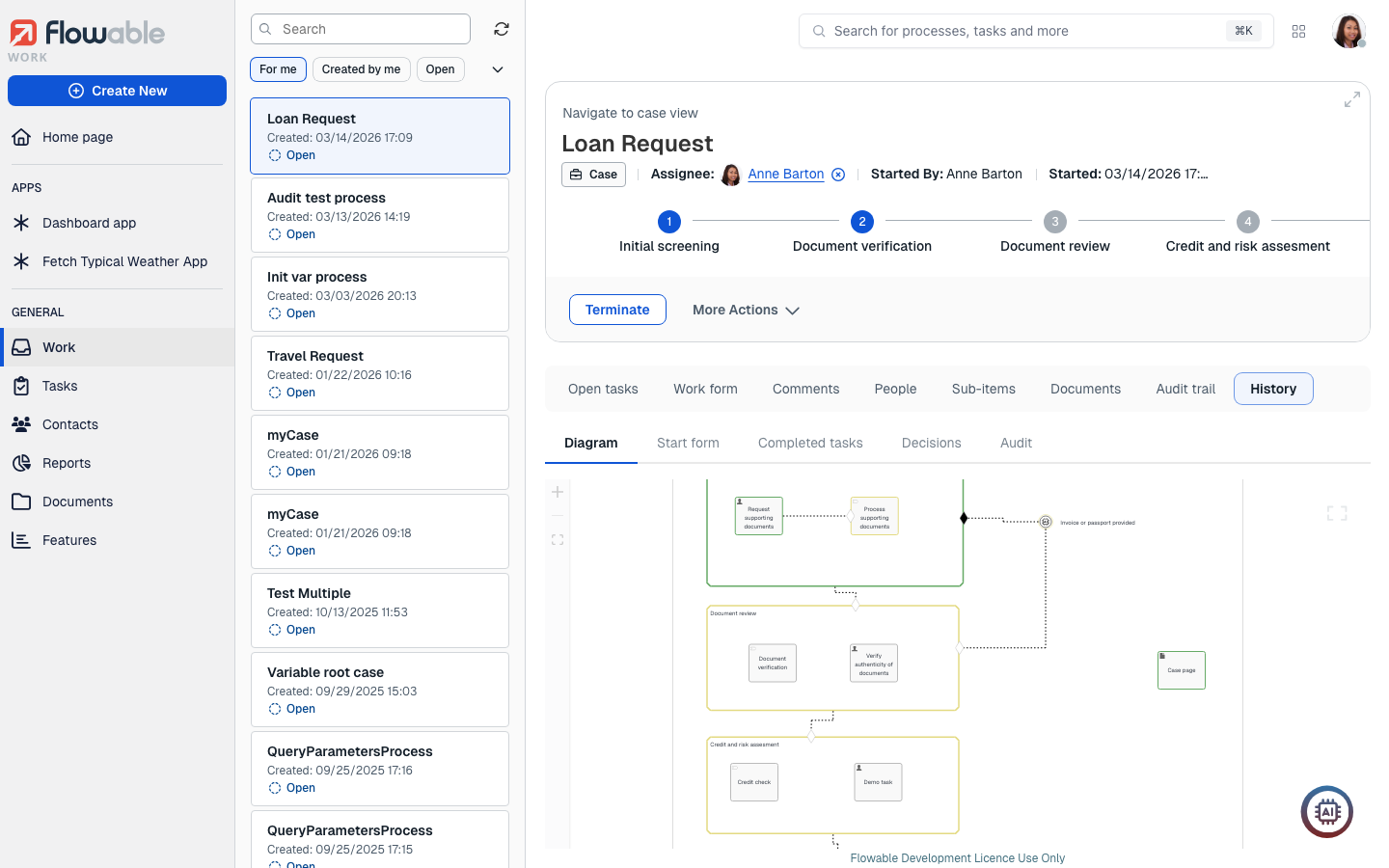
The diagram tab shows the CMMN or BPMN diagram of the respective work item, showing in different colors the steps that are completed, active, and pending.
-
You can zoom in or out by using your mouse scroll wheel or the buttons.
-
You can move around the diagram by left-clicking and dragging in the diagram area.
-
You can view the diagram in full screen by clicking the upper-right corner frame icon. To exit from the full screen view, click the X button in the upper-right corner.
Start form
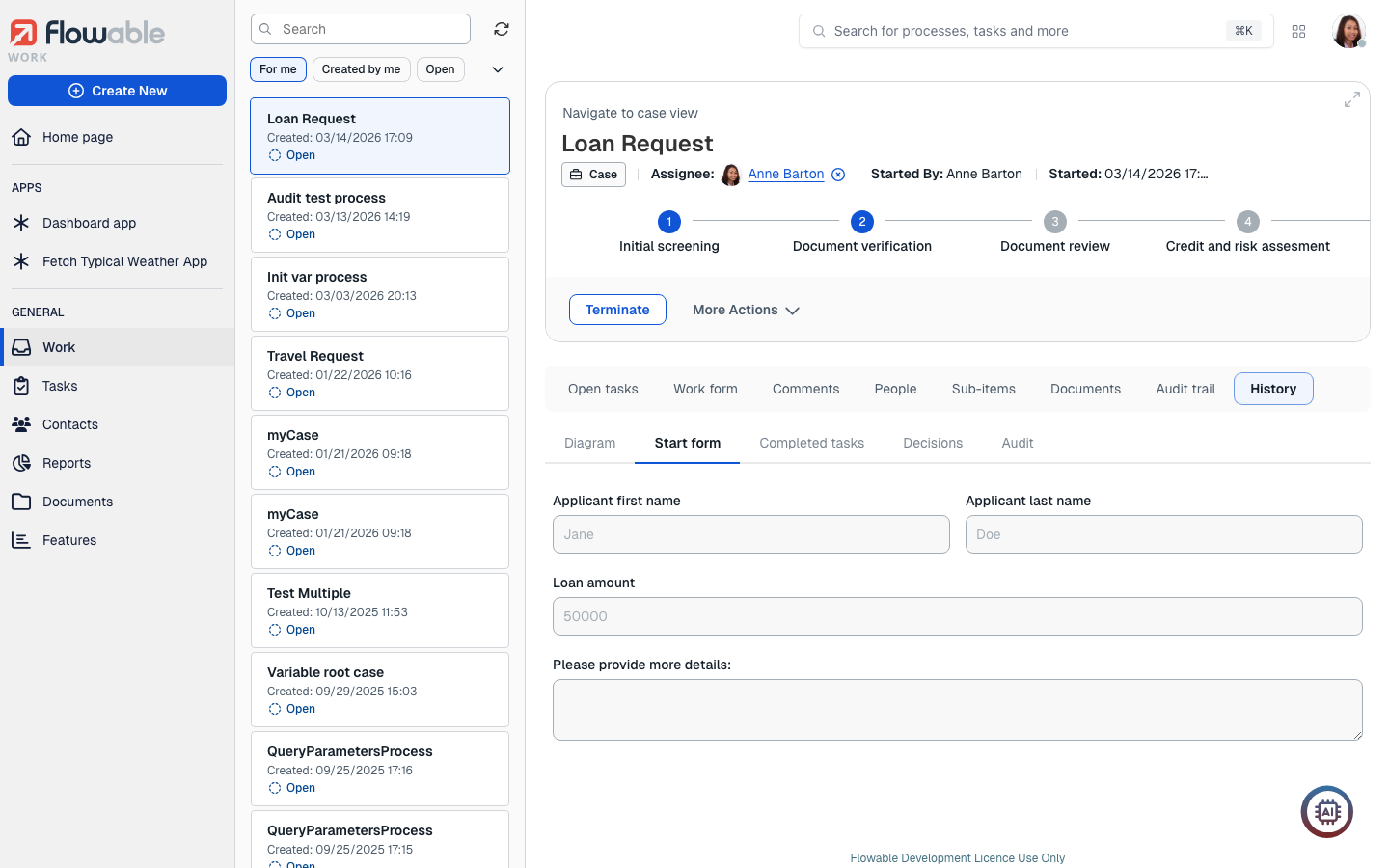
The start form tab shows the data that was filled in the start form when the work item was created.
Completed tasks
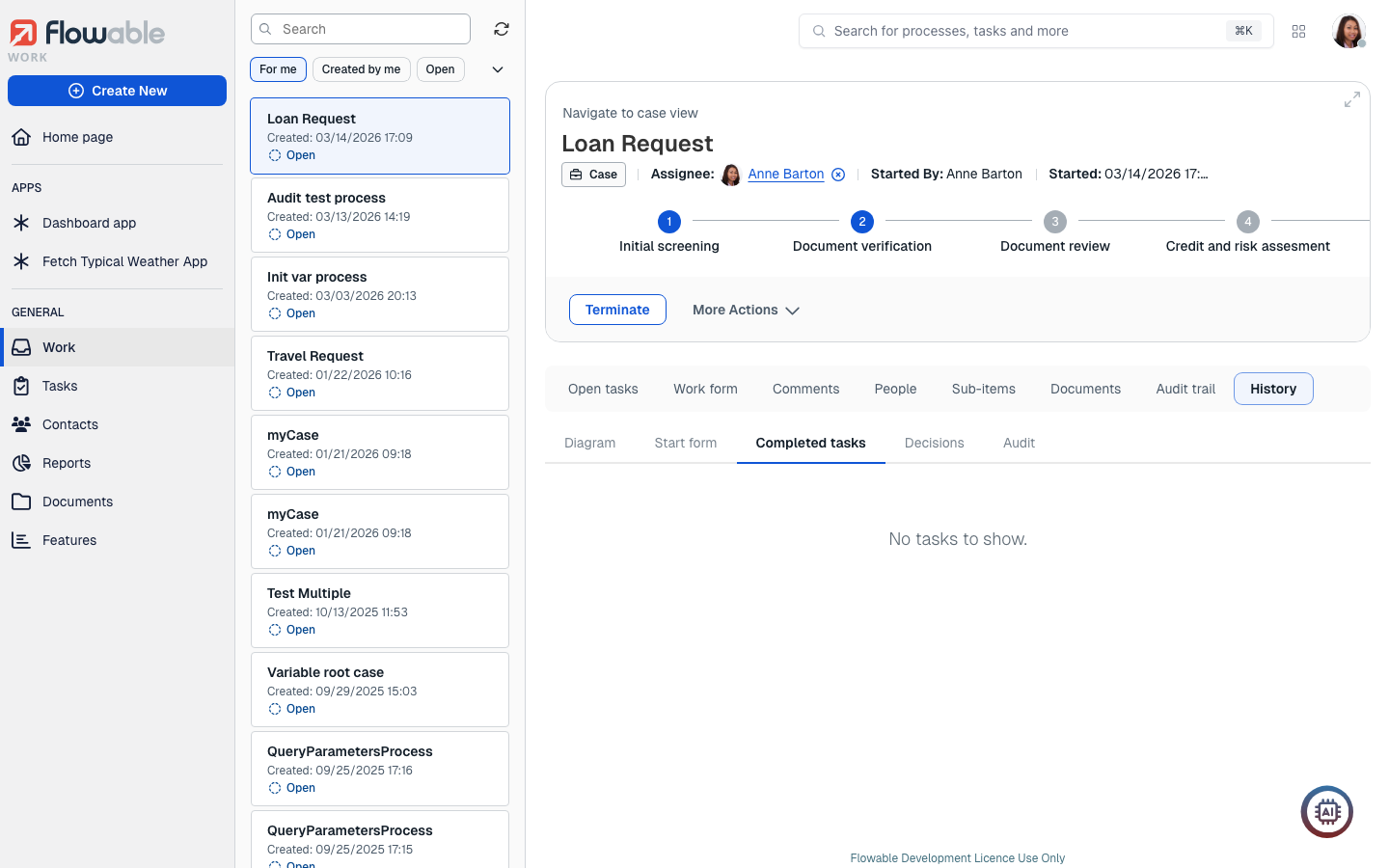
In the completed tasks tab, you can view all the previously completed tasks of the work item and review their forms.
Decisions
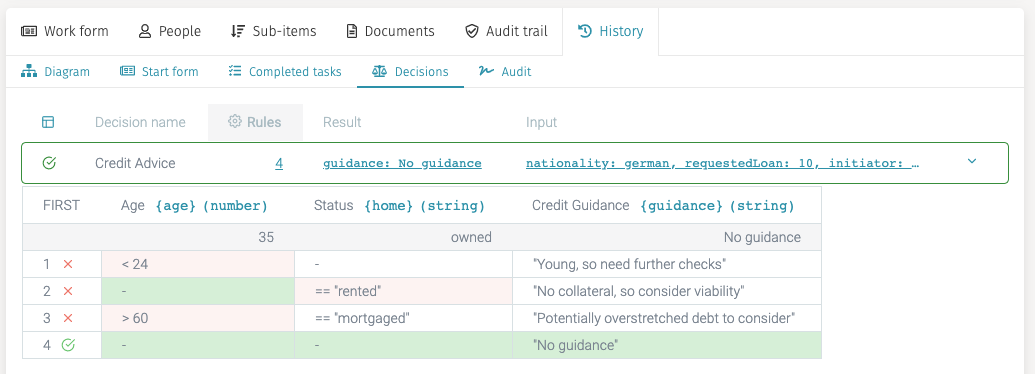
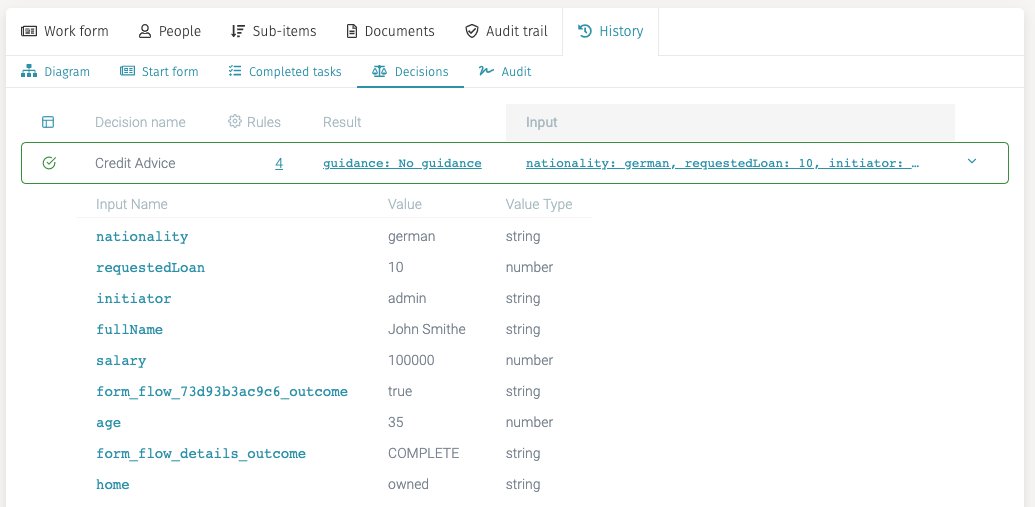
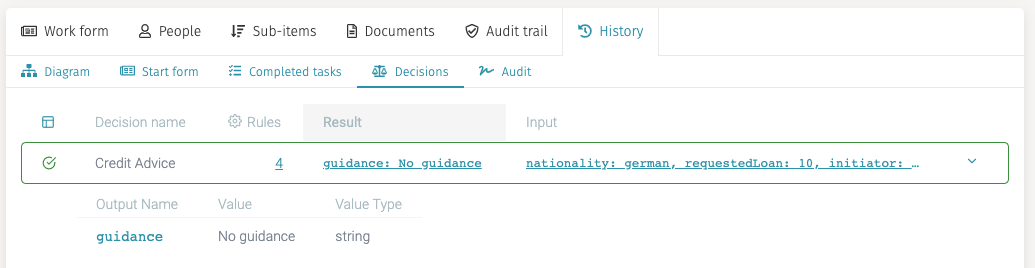
If your work item has executed at least one decision table (also referred to as a DMN table), this tab shows a detailed analysis of the decisions that were taken based on them.
When you click on the rules column value for a particular decision table execution, the DMN table is shown, highlighting the matching rules and the outcome.
You can also click on the input to review the values that were in the process and so potentially taken into account by the decision table to match its rules by clicking on the value in the input column.
Finally, if you click on the result value, the results of the decision table are shown.
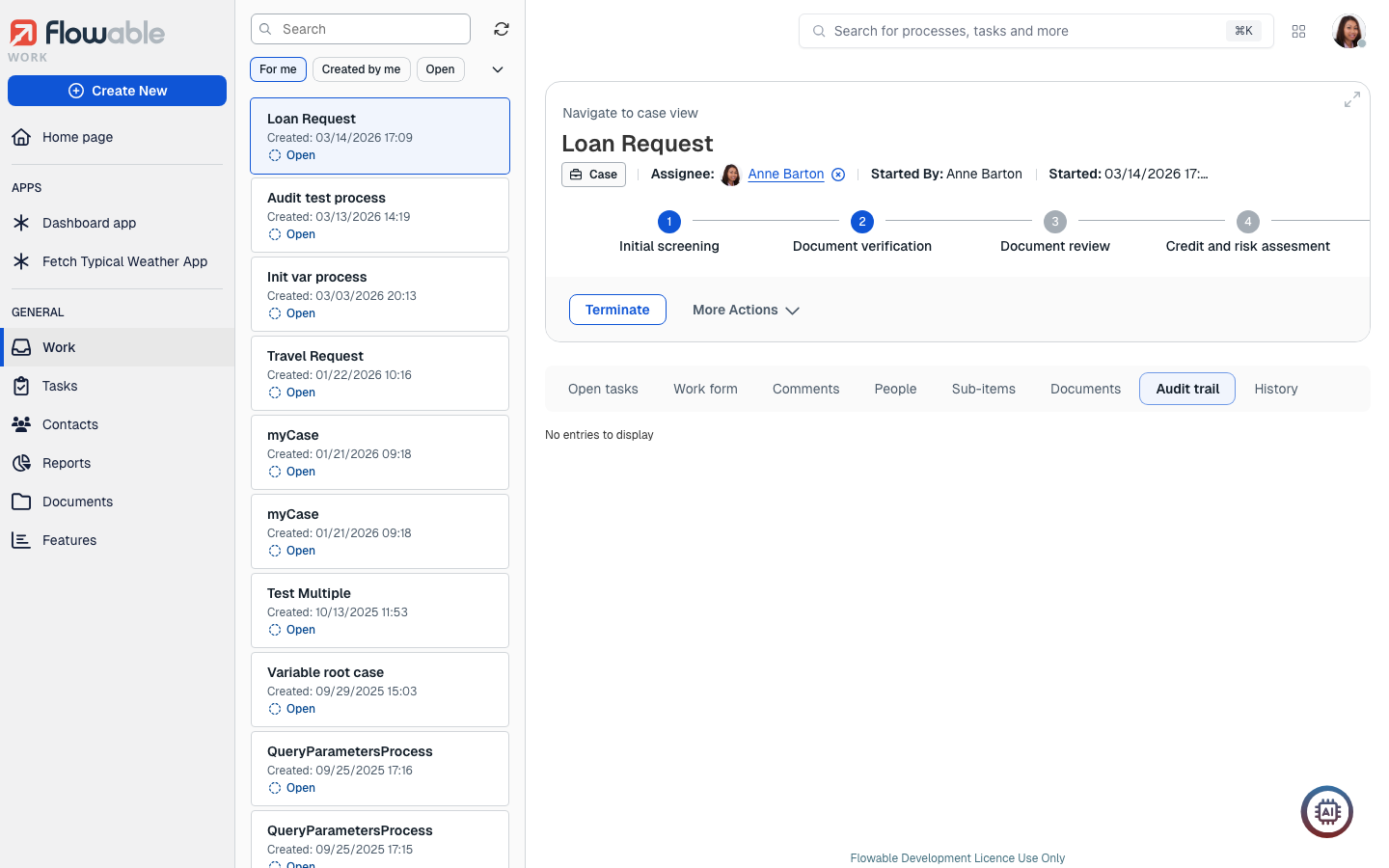
Audit
The audit tab shows a scrollable list of all the different events that have happened to the work item, ordered by creation date ascending.