Generate Document
Introduction
Flowable allows to generate Word and PDF documents using templates powered by Aspose. This task takes a template and generates a document based on it at runtime, populating it with process or case variable data.
The Generate Document task supports:
- Word templates using the LINQ Reporting Engine syntax for dynamic content including conditionals, loops, images, and expressions
- PDF form templates with editable form fields that get pre-filled with variable values
- Template variations for multi-language or context-dependent document generation
- Output as PDF or Word, with optional PDF/A compliance for archival purposes
Configuring and Using the 'Generate Document' Activity
This guide describes the 'Generate Document' activity that is available both for BPMN and CMMN models. With this activity, it is possible to generate PDF or Word documents based on data gathered during instance execution or from external sources.
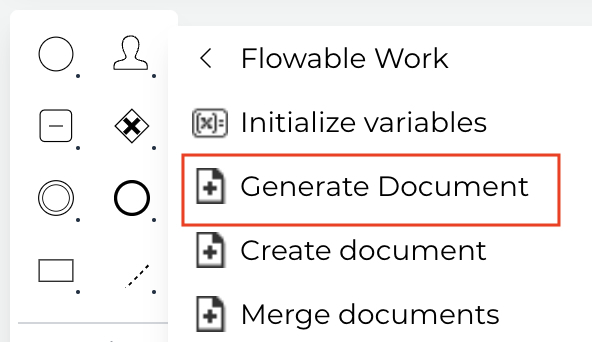
The features and capabilities of this activity are described below by working through a real example.
The Template Model
The Flowable Work Activities > Generate Document activity uses a
Word document as a template that at runtime is used to generate a final PDF or Word document. This template is referenced by a Template Model.
Open Flowable Design and create a new app model. Afterwards, click the Create button and select Template for the Model type drop
Give the template a name and a key. For demo purposes, we'll use My template and myTemplate.
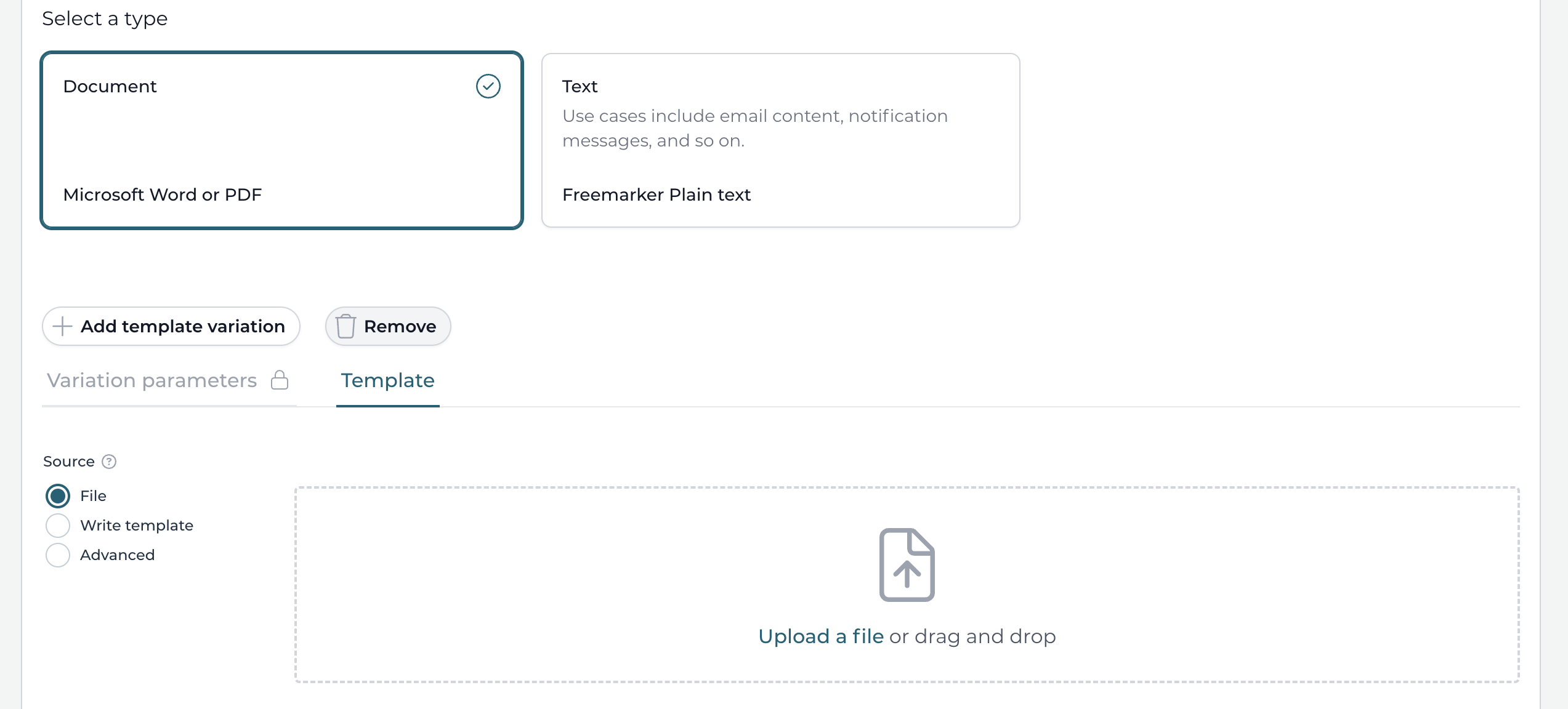
This will open up the template model editor. We'll use a Word document here, so the type can be kept on Document, which is the default. The alternative there, Text is for textual templates like for email bodies.
Click the Upload a file icon and upload or drop a Word template there.
The Word document template looks like this:
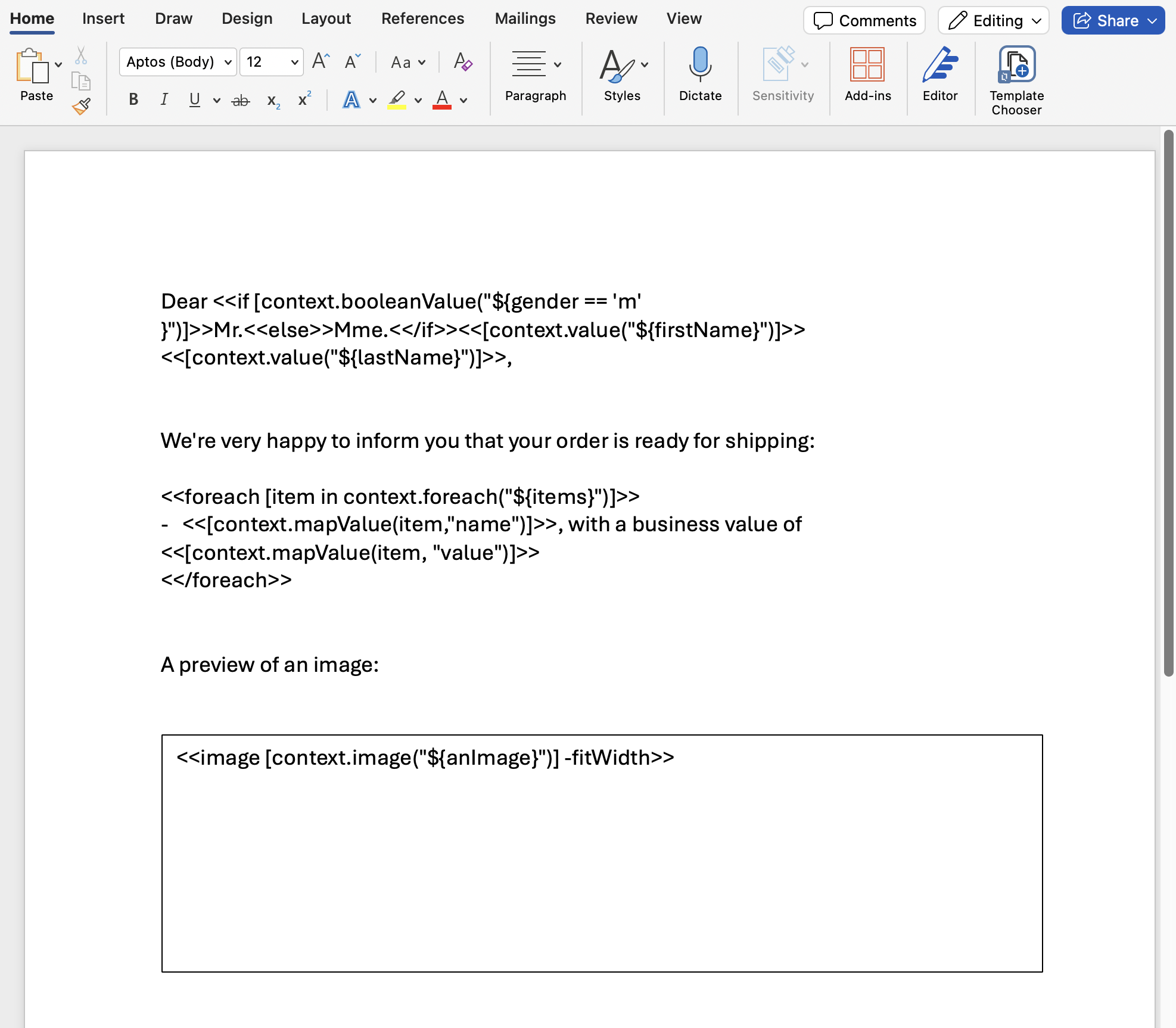
Dear <<if [context.booleanValue("${gender == 'm' }")]>>Mr.<<else>>Mme.<</if>><<[context.value("${firstName}")]>> <<[context.value("${lastName}")]>>,


We're very happy to inform you that your order is ready for shipping:

<<foreach [item in context.foreach("${items}")]>>
-   <<[context.mapValue(item,"name")]>>, with a business value of <<[context.mapValue(item, "value")]>>
<</foreach>>


A preview:


<<image [context.image("${anImage}")] -fitWidth>>
More information about the language and syntax used here can be found at https://docs.aspose.com/words/java/linq-reporting-engine-api/.
Finally, save the model and go back to the app model.
The Process Model
We can now use this template in a process or case model. Using Flowable Design, let us create the following simple process model:
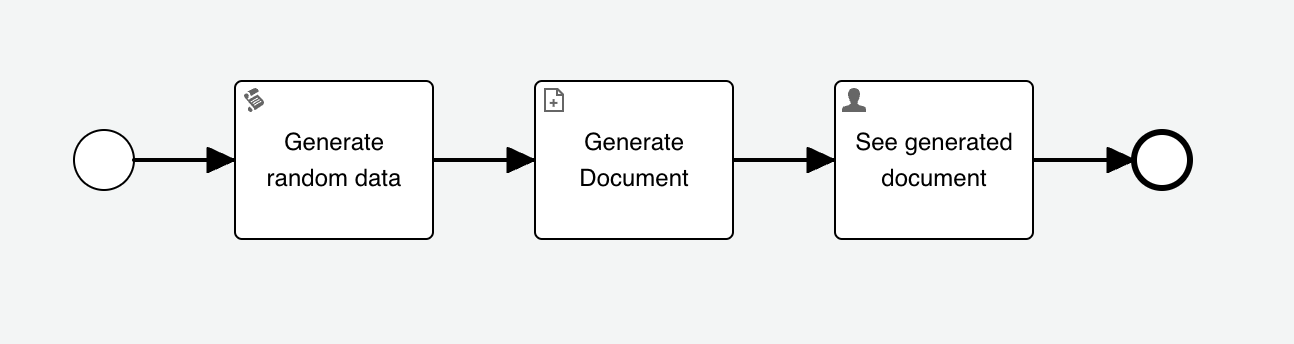
This process also has a start form that looks as follows:
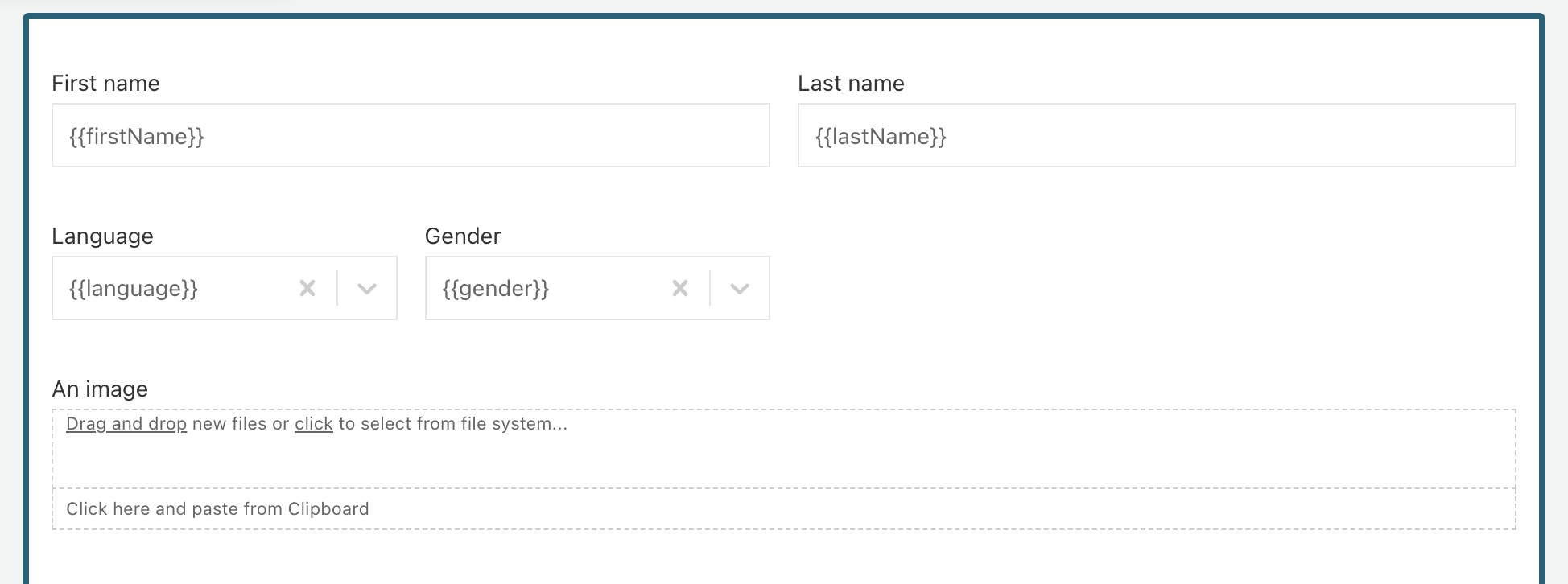
Note that the start form has fields called firstName, lastName, gender, anImage. When executing an instance of this process definition, the form values are stored as process variables.
Such variables can be used in templates. Note that transient variables also work in case you do not want to store variables that are only useful for document generation.
Data for documents can also come from automatic service tasks. In this example, we are using a Groovy script task to emulate this:
def items = new java.util.ArrayList();

HashMap map1 = new java.util.HashMap();
map1.put("name", "laptop");
map1.put("value", 1234);
items.add(map1);

HashMap map2 = new java.util.HashMap();
map2.put("name", "desk");
map2.put("value", 987654321);
items.add(map2);

execution.setTransientVariable("items", items);
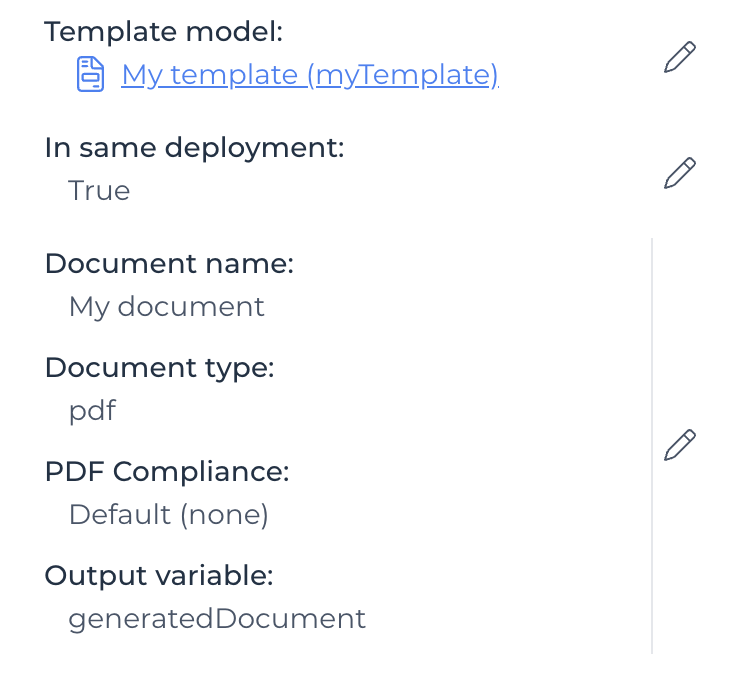
Now on to the configuration of the Generate Document step:
-
The template model is the model we've created above. It's also possible to create a new model directly from this property.
-
The Document name is used to determine the filename of the generated document and this can be an expression (e.g., based on a customer name variable, a timestamp, etc.).
-
The Document type is either
pdforwordand this determines the output format. -
v3.16.0+ The PDF Compliance can be changed if there's a need for PDF/A compliance (e.g. for archival purposes). This option is only used if the
document typeis set toPDF. -
The Output variable is filled in when the generated document needs to be referenced later (this is shown in the next step).
Finally, in the task at the end, we want to display the document.
To do this, we attach a task form to the user task and use
the document gallery form component with a value set to
{{generatedDocument}} (i.e., the name of the Output variable above).
Running the Example
Deploy the process model by creating an app and publishing it in
Flowable Design.
Go to Flowable Work or Engage, click the Create new button in the
Work menu, and select the deployed process.
The start form is now shown:
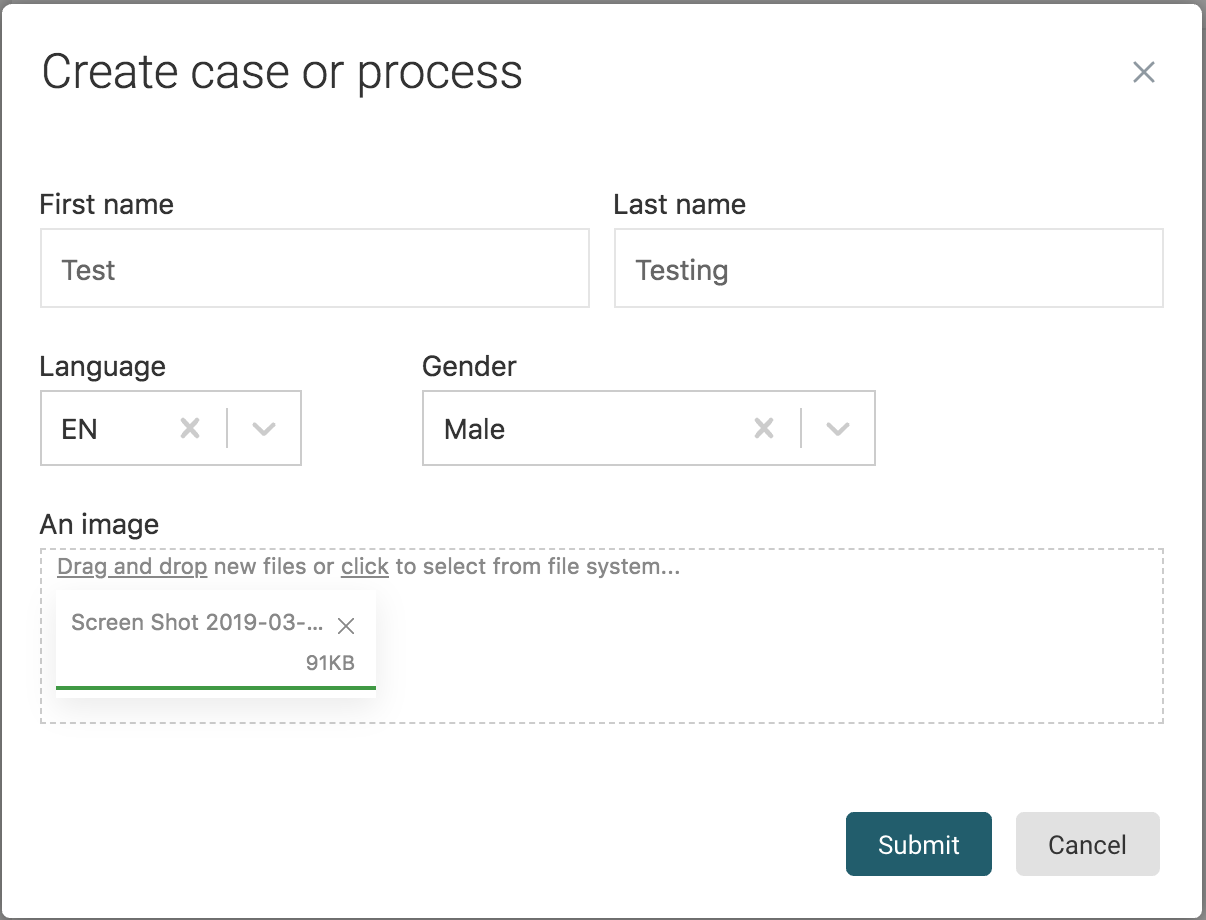
After clicking Submit, the process instance is started, and the
document is generated.
The process instance now waits at the user task before the
end event. When clicking on the task, we see the generated document:
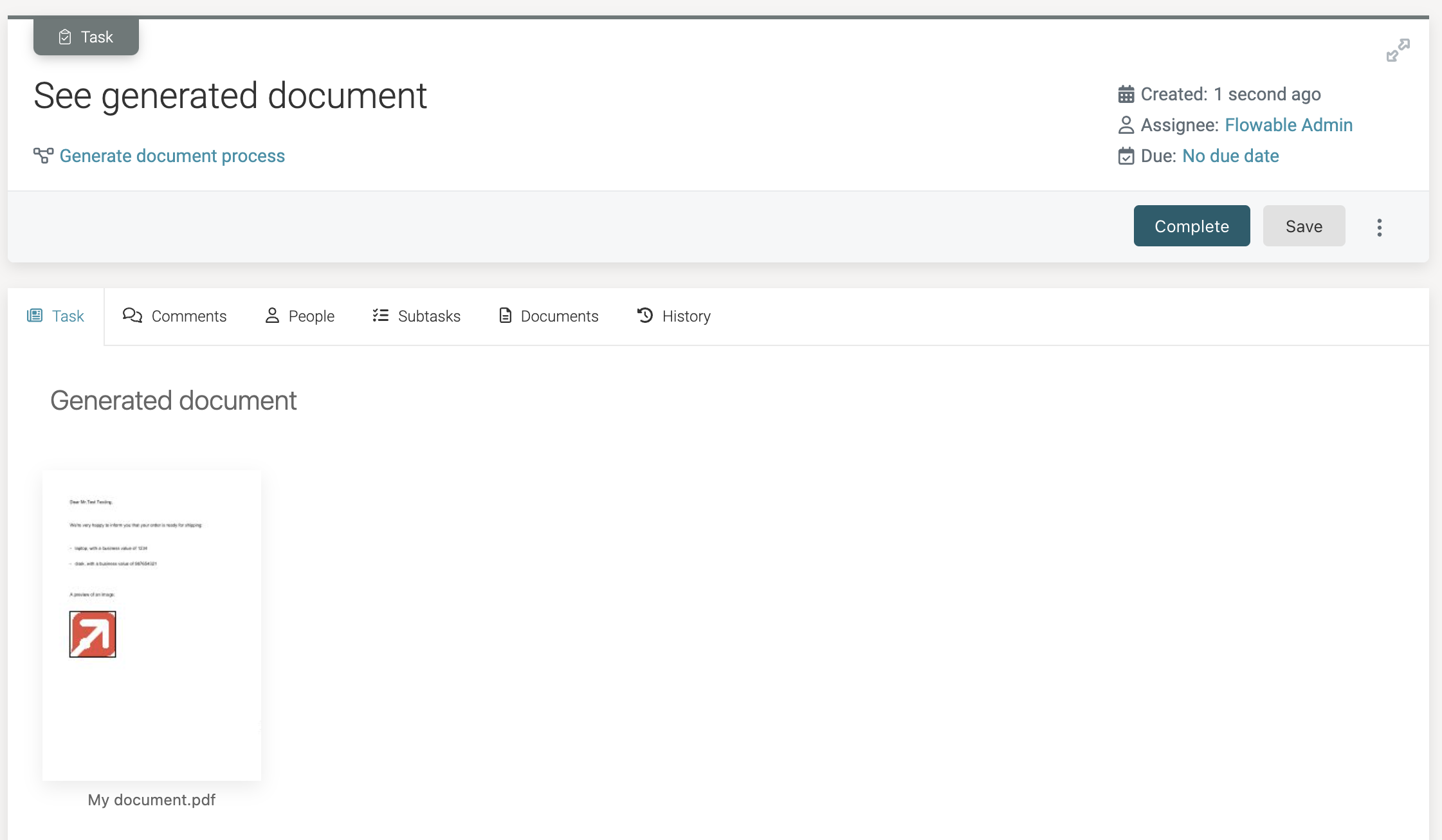
When clicking the document thumbnail, the document is seen full screen and downloaded.
Template Variations
In the previous example, we used one variation definition for the template. Let us now look at adding variations.
Variations allow a different template, depending on the context (more specifically based on instance variables), for the same template definition.
A prime example is the multi-language support for the same document. That is the reason why the start form above had a language field.
Let us build such a multi-language document generation now.
Open the template model create before.
Click the Enable variations checkbox. This now shows a UI that allows filling in variation parameters. Add one parameter with name language and Default value en.
Upload two documents: one English template and one other language template:
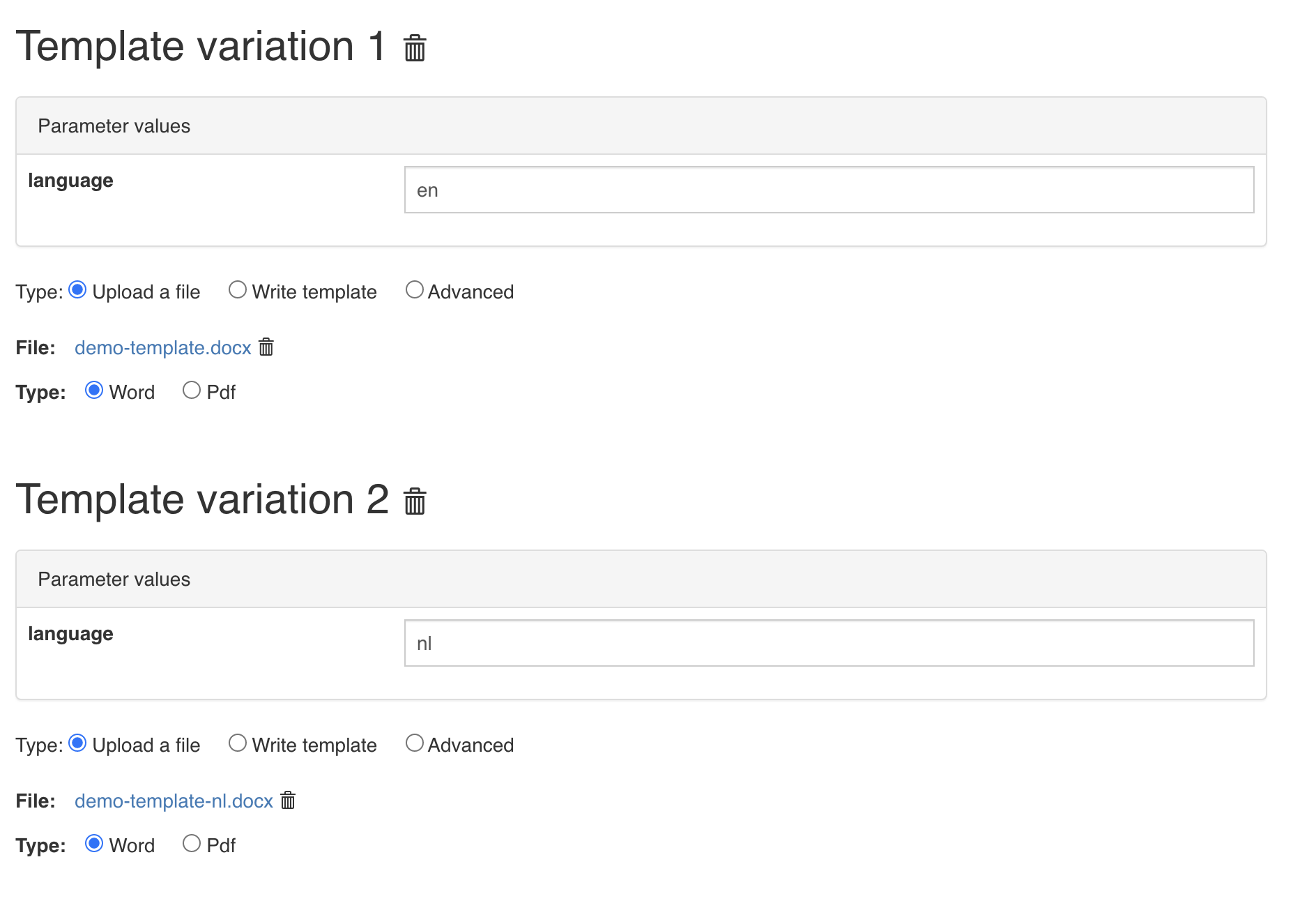
The en version is the same as above and the nl version is a version that is translated into Dutch.
What we're configuring here: when the language parameter is 'en', pick the first template and when the parameter value is 'nl', pick the other. The parameter will be a process variable at runtime in this case. The default is set to 'en' when the parameter is not matching.
 note
noteMultiple variation parameters can be used and they are logically AND-ed together
The process definition is the same as the above. However, when now another language is selected, the translated version will now be used.
Advanced
In the Word template a context variable exists with which to generate advanced output. This variable can be used in the template (as shown above).
noteThe name of the context object can be changed by the Context object property in Flowable Design. The default value is context.
For a list of available methods within the context object checkout the context reference
Configuring and Using the 'Generate Document' Activity with a PDF Template
This guide describes the 'Generate Document' activity to generate pre-filled PDF documents from PDF forms. PDF document generation is similar to Using the 'Generate Document' Activity.
With this activity, it is possible to generate a pre-filled PDF form, based on data gathered during process/case instance execution or from external sources.
The Template Model
Creating a template model is done the same way as above. The difference is that now a PDF template is uploaded. Such a PDF needs to be created using a specialized PDF tool that allows to create editable PDF's.
An example PDF document template looks like this:
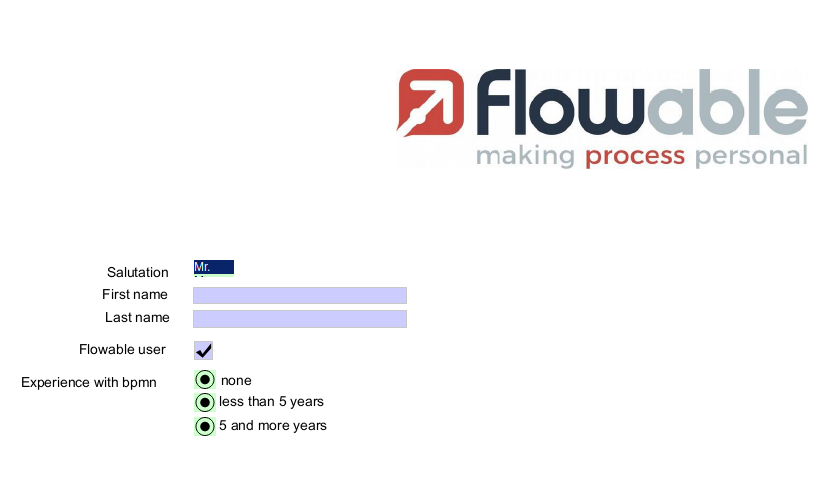
To pre-fill a form field value with data, the form field name must be an expression.
In the example above,
the First name text field name is a ${firstName} expression.
When the text field name is an expression,
the Generate document activity sets the text field value to the value of
the evaluated expression. Supported form fields are:
-
text field.
-
check box: when the name expression value is of a
Booleantype, the check box is set or unset if the value istrueorfalse. -
radio button: the radio button option with the same name as the name expression value is set.
-
list box: the choice with the same name as the name expression value is set.
The Combo box form field is not supported.
Process Model Example
We can now use this template in a process or case model. Using Flowable Design, let us create the following simple process model:
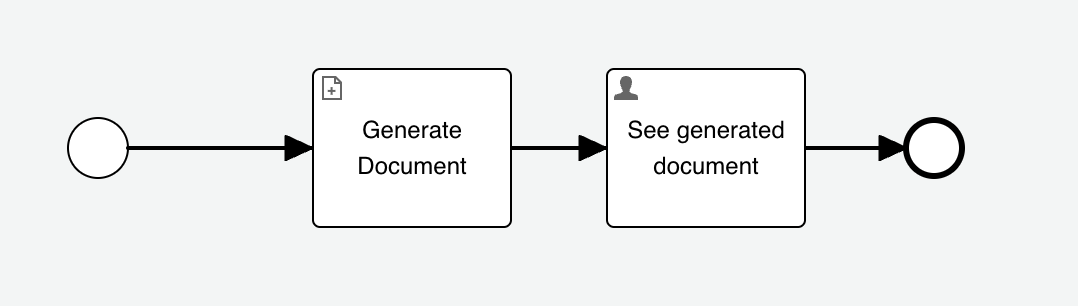
This process also has a start form that looks as follows:
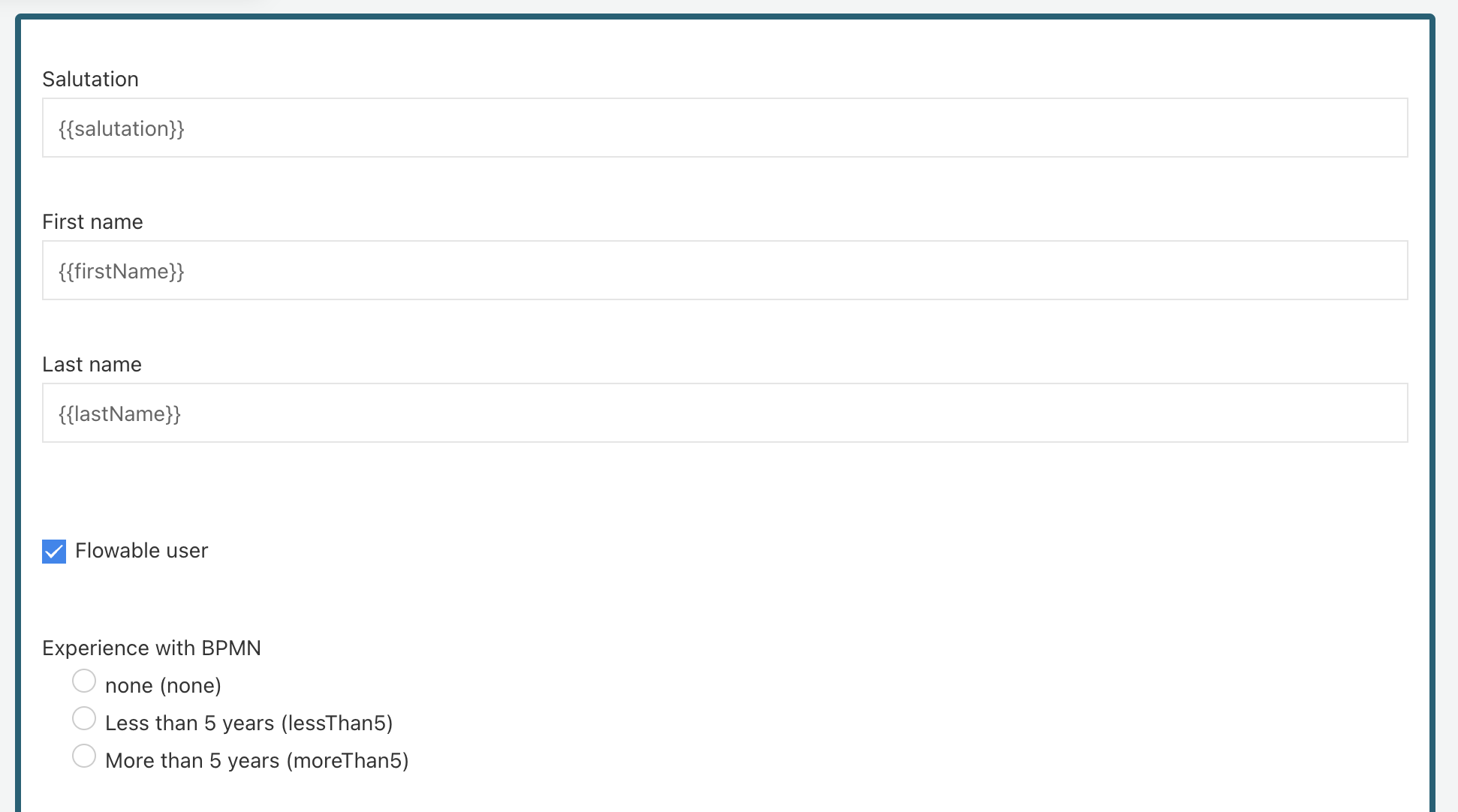
Note that the start form has fields called salutation, firstName, lastName, flowableUser, bpmnExperience. When executing an instance of this process definition, the form values are stored as process variables. Such variables can be used in templates. Note that transient variables also work if you do not want to store variables that are only useful for document generation.
The only supported document type is pdf.
Finally, in the task at the end, we want to display the document.
To do this, we attach a task form to the user task and use
the document gallery form widget with a value set to
{{generatedDocument}} (i.e., the name of the Output variable above).
Running the Example
Deploy the process model by creating an app and publishing it in
Flowable Design. Next, go to Flowable Work or Engage, click the
Create new button in the Work menu, and select the deployed process.
The start form is now shown:
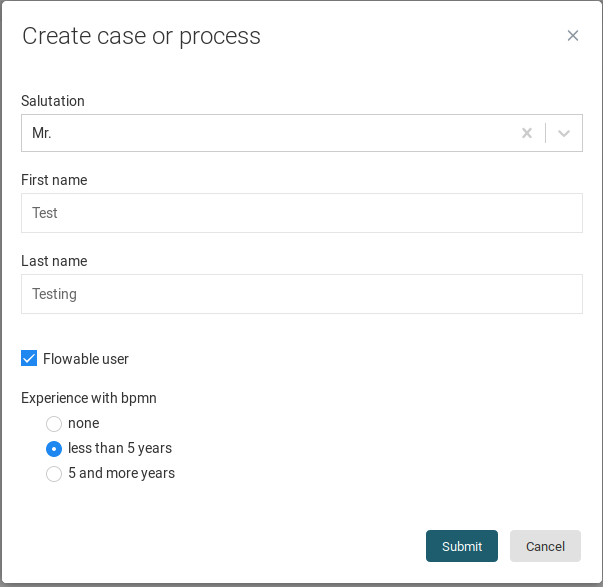
After clicking Submit, the process instance is started, and the
document is generated.
The process instance now waits at the user task before the
end event. When clicking on the task, we see the generated document:
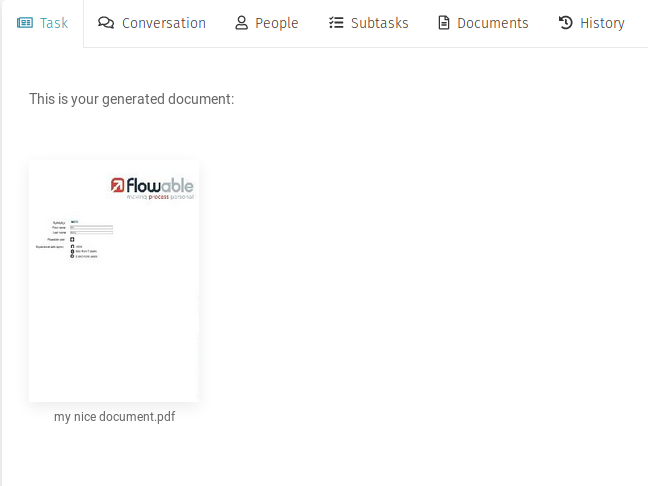
By clicking the document thumbnail, the document is seen in full screen and downloaded.
Advanced settings
There are a few advanced settings possible to tweak the Aspose templating engine. These need to be set in your Flowable Work installation:
flowable.template.aspose.allow-missing-members(default true): By default, missing members in expressions (e.g.<<[name.something]>>) will throw an exception. When this property is set to true, no exception is thrown, but the expression will resolve to null (i.e. no value is written).flowable.template.aspose.inline-errors(default false): By default, syntax errors in the template will lead to an exception being thrown. When this property is set to true, no exception is thrown, and the place where the error is happening is shown in the generated template. Note that will show syntax errors only, not expression evaluations problems.flowable.template.aspose.remove-empty-paragraphs(default false): By default, expressions resolving to empty paragraphs are not removed. When this property is set to true, empty paragraphs will be removed from the final document.flowable.template.aspose.update-dynamic-fields-before-save(default false): If set, after evaluating a Word template the fields of the document are updated. This can be used to force the reevaluation of table of contents and other dynamic value fields,flowable.template.aspose.auto-hyphenation(default false): v3.15.14+ v3.16.14+ v3.17.10+ 2025.1.04+ if set, will automatically hyphenate (split words). Note that for html text it's important to define the language as part of a paragraph attribute like<p lang="fr-FR">for French for example. Currently supported are English, French, German, Italian and spanish. Other languages can be configured by adding the relevant .dic file to the classpath in thecom/flowable/template/hyphenation/folder.

Properties
General
| Attribute | Type | Description | Category |
|---|---|---|---|
| Model Id | Text | Model Id identifies the element within the process model. | The model id, name and documentation properties can be found on any element. They are used respectively to uniquely identify the generate document task, to give it a user-friendly name and to add a free-form description. |
| Name | Text | The name of the element. This is the name displayed in the diagram. | |
| Documentation | MarkdownMinimal | A free-form text that can be used to explain details about the particular element. | |
| Store result variable transiently | Boolean | Flag that marks that the result of the expression will not be persisted at the end of the database transaction. Use this if you do not want to store a result after the next wait state, e.g. if you only need access to the result inside a condition. | |
| Template model | Reference | A model that will be used at runtime as a template. | Create or link a template model to this task, which is used to generate a document. A template model reference can be unlinked to allow another template model to be linked in its place. Note that unlinking a template model does not delete the model itself. |
| In same deployment | Boolean | Set it to true if the referenced definition should be referenced from within the same app deployment. Set it to false to always use the newest definition. | The Same deployment flag is used to indicate that the template model that is used is part of the same app deployment package as where the current BPMN model is in. If unchecked, the latest version is used which can come from an app that is deployed at a later point in time. |
| Document name | Text | The human-readable name of generated document. | The Document name is used to determine the name of the generated document (and thus also the filename). This can be an expression (e.g., based on a customer name variable, a timestamp, etc.) The Document type is either pdf of word and this determines the output format. The PDF Compliance (only visible when the Document type is PDF), determines the compliance level of the generated PDF. The PDF/A format (with subtypes A-1a and A-1b) are meant for example for archiving purposes as, amongst others, the fonts are embedded in the PDF file. The Output variable can be filled in when the generated document needs to be referenced later in the instance. |
| Document type | Selection:
| The type of the generated document: either a Word or pdf document. If the model is set, this is ignored. | |
| PDF Compliance | Text with suggestions:
| The PDF compliance of the created PDF document | |
| Output variable | Text | The variable name that stores the result of executing this service task. |
Multi Instance
Multi instance
| Attribute | Type | Description | Category |
|---|---|---|---|
| Multi instance type | Selection:
| The type of multi-instance: default is 'None' meaning a single instance is created at runtime. Select either 'Parallel' or 'Sequential' if you want multiple instances to be created. | Multi-instance is used to define the repetition of this generate document task at runtime. With multi-instance it is possible to generate multiple documents, either sequentially after each other or in parallel. For example, when referencing a collection a document could be generated for each element of that collection. |
| Collection | Text | References a collection variable (for example a JSON array variable) by its name or using an expression that resolves to a collection. | |
| Element variable | Text | The name of the variable where the currently processed element from the multi-instance collection configured above will be stored (for example, 'invoicePosition'). The element can then be accessed through an expression, e.g., ${invoicePosition}. | |
| Element index variable | Text | The name of the variable where the index of the currently processed item from the multi-instance collection will be stored, for example, 'itemIndex'. The index is a number starting with 0 which is increased with every element that is being created. The index can then be accessed through an expression, e.g., ${itemIndex} further on in the process. | |
| Cardinality | Text | A fixed number or an expression that resolved to an integer that controls the number of instances that will be created. This is typically used when there is no collection available or needed. | |
| Completion condition | Text | An expression that should resolve to a boolean value. When evaluating to true, the remaining activity instances will be removed and the process instance will continue. |
Variable aggregation
| Attribute | Type | Description | Category |
|---|---|---|---|
| Variable Aggregations | List | Define an aggregation. Each element in this list will result in one aggregation variable. | When having multiple instances of this generate document task, there could be a need to create an aggregation of the variables created and/or updated in each instance. With variable aggregation, a JSON variable can be created that after all instances have been completed contains the summary of all the used variables. This is needed because typically variables are persisted locally, to avoid clashes on the process instance level. Alternatively, an 'overview' variable can be created while the instances are still unfinished. Each aggregation consists of one or multiple definitions that map instance variables of one instance to the single aggregation variable. |
Advanced
| Attribute | Type | Description | Category |
|---|---|---|---|
| Optimize for only automatic steps | Boolean | (Advanced setting, only check it if you understand the implications) If checked, this instructs the Flowable engine that the multi-instance only contains automatic tasks and no wait states. In this situation, an asynchronous job is created when the multi-instance activity is entered that keeps checking if all instances are completed and completes the multi-instance. The benefit of this approach is that it is light on resources versus alternatives and doesn't lead to optimistic locking exceptions. |
Advanced
Execution
| Attribute | Type | Description | Category |
|---|---|---|---|
| Skip expression | Text | If the Skip expression evaluates to true, the flow is taken regardless of any condition. It is required to opt-in to this feature by setting a variable _FLOWABLE_SKIP_EXPRESSION_ENABLED with the Boolean value true on the process instance. | When the Skip expression resolves to true, this generate document task will not be executed at runtime. The Include in history flag can be used to store the historical entry of this generate document task when running with a history level that normally would not store the execution of the generate document task. Note that this flag has no effect when running with history level 'none'. |
| Include in history | Boolean | When the history level is set to "instance" or "task" level with this property it can be configured if this activity instance should be included in the historic activity data. | |
| Is for compensation | Boolean | Determines whether the activity can serve as a compensation for another activity. | A BPMN transaction is a set of activities that logically belongs together. Transactions can be cancelled through the Cancel End Event and handled through the Cancel Intermediate Boundary Event. The Is for compensation field can be used to indicate that the generate document task is meant as compensation steps for another activity. |
| Asynchronous | Boolean | When enabled, the activity will be started as an asynchronous job. The process state is persisted before this element is executed. Then, the process execution will be resumed asynchroneously. This can be used when the execution an activity takes a long time to return the UI to the user quicker in case the user does not need to see the next step immediately. However, if an error occurs before the following wait state, there will be no direct user feedback. Please refer to the documentation for more details. | When making the generate document task asynchronous, the document will be generated in the background. This is useful for example to not block the UI of a user, as generating a document can be a resource-intensive operation. Choose exclusive to avoid other asynchronous steps of this process instance to run at the same time. When Leave asynchronously is enabled, the activity will be left as an asynchronous job. This means that the activity is ended asynchronously. |
| Exclusive | Boolean | Determines whether the activity or process is run as an exclusive job. An exclusive job makes sure that no other asynchronous exclusive activities within the same process are performed at the same time. This helps to prevent failing jobs in concurrent scenarios. | |
| Leave asynchronously | Boolean | When enabled, the activity will be left as an asynchronous job. This means that the activity is ended asynchronously, including end execution listeners. Please refer to the documentation for more details. | |
| Leave exclusive | Boolean | Determines whether the activity should leave as an exclusive job. An exclusive job makes sure that no other asynchronous exclusive activities within the same process are performed at the same time. This helps to prevent failing jobs in concurrent scenarios. | |
| Job Category | Text | When set, the underlying generated job will have a Job Category, which will be executed only by Application Servers, where the Process Engine has enabledJobCategories set to this category. |
Details
| Attribute | Type | Description | Category |
|---|---|---|---|
| Context object | Text | The name of the context variable in template expressions such as <<[context.value("${name}")]>>. By default 'context'. | These are advanced configuration properties for the generate document task. The Context object is name of the context variable in template expressions such as <<[context.value("${name}")]>>. By default 'context'. The Content item to update can be used to reference an existing content item variable, which is updated instead of creating a new content item when generating the document. It can be a ContentItem, Collection of exactly one Content Items or a String (a content id item). The Template key allows to set a key referencing the key of the template model. If the template model is set, this is ignored. |
| Content Item to Update | Text | The content item that should be updated. It can be a ContentItem, Collection of exactly one Content Items or a String (a content id item) | |
| Template key | Text | The key referencing the key of the template in the template engine. If the model is set, this is ignored. |
Advanced options
| Attribute | Type | Description | Category |
|---|---|---|---|
| Exception Mappings | List | Define one or more exception mappings to map a technical Java exception to a BPMN error code. | Map technical java exceptions to BPMN error codes that can be caught with a boundary error event. |
| Failed job retry time cycle | ComplexTrigger | Service task logic defined with a failed job retry time cycle |
Listeners
| Attribute | Type | Description | Category |
|---|---|---|---|
| Execution listeners | List | Allows invoking custom after certain lifecycle events. Start: Executes after the activity has been started. End: Executes after the activity was completed. Transition: When defined on a sequence flow, executes once the flow is transition is taken. | Execution listeners are used to add logic on certain lifecycle events. Typically it is used to add extra technical logic which shouldn't be visible in the BPMN process model. |
Visual
| Attribute | Type | Description | Category |
|---|---|---|---|
| Background color | Color | The background color of the element in the diagram. | Visual properties that determine how the generate document task is shown in the diagram. This has no impact on the runtime execution. |
| Font size | Selection:
| Font size. | |
| Font weight | Selection:
| Select the style between bold and normal. | |
| Font style | Selection:
| Select the style between italic and normal. | |
| Font color | Color | Select a font color. | |
| Border color | Color | The border color of the element in the diagram. |
List Attribute Details
Variable Aggregations
| Attribute | Type | Description |
|---|---|---|
| Target (Variable / Expression) | Text | The name of the target variable or an expression that gives the variable name |
| Type | Selection:
| The type of aggregation. Use 'default' to use the standard behavior of creating an aggregation JSON variable. Use 'custom' to define a delegate expression that will handle the aggregation. Please see the documentation for more information. |
| Delegate Expression | Text | Define a delegateExpression that will resolve to an instance of VariableAggregator (for BPMN) or PlanItemVariableAggregator (for CMMN). This instance will then be responsible for aggregating the variables. |
| Class | String | A class that implements VariableAggregator (for BPMN) or PlanItemVariableAggregator (for CMMN). This instance will then be responsible for aggregating the variables. |
| Target variable creation | Selection:
| Configures the way the aggregation variable is created. The 'Default' option creates the aggregation variable when all instances of the multi-instance have been completed. Use 'Create overview variable' to create a variable at the start of the multi-instance and keep it up to date during multi-instance exeution. Once all the instances are completed it will create a JSON variable in the same way as for Default target variable creation. Use the 'Store as transient variable' option to have the default behavior, but store the resulting aggregation variable transiently. |
| Variable Definitions | BasicFormList | property.loopVariableAggregation.definitions.description |
Variable Definitions
| Attribute | Type | Description |
|---|---|---|
| Source (Variable / Expression) | Text | The name of the source variable or an expression that provides the value |
| Target (Variable / Expression) | Text | The name of the aggregation variable or an expression that resolves to a variable name. |
Exception Mappings
| Attribute | Type | Description |
|---|---|---|
| Error code | Text | The code of an error definition. |
| Exception class name | Text | |
| Root cause | Text | |
| Include child exceptions | Boolean |
Failed job retry time cycle
| Attribute | Type | Description |
|---|---|---|
| Time cycle | Text |
Execution listeners
| Attribute | Type | Description |
|---|---|---|
| Event | Selection:
| The lifecycle event. The 'Take' event is only available for sequence flow. |
| Class | Text | Fully qualified classname of a class to be invoked when executing the task. The class must implement either JavaDelegate or ActivityBehavior. |
| Expression | Text | JUEL Expression to be executed when the task is started. Expressions allow you to interact with the backend by calling services, making calculations etc. You can find more information about expressions in the documentation. |
| Delegate expression | Text | Delegate Expression to be executed when the task is started. A delegate expression must resolve to a Java object, for instance a Spring bean. The object's class must implement either JavaDelegate or ActivityBehavior. |
| Fields | List |
Fields
| Attribute | Type | Description |
|---|---|---|
| Name | Text | The name of the element. This is the name displayed in the diagram. |
| String value | Text | |
| Expression | Text | JUEL Expression to be executed when the task is started. Expressions allow you to interact with the backend by calling services, making calculations etc. You can find more information about expressions in the documentation. |
| String | Text |